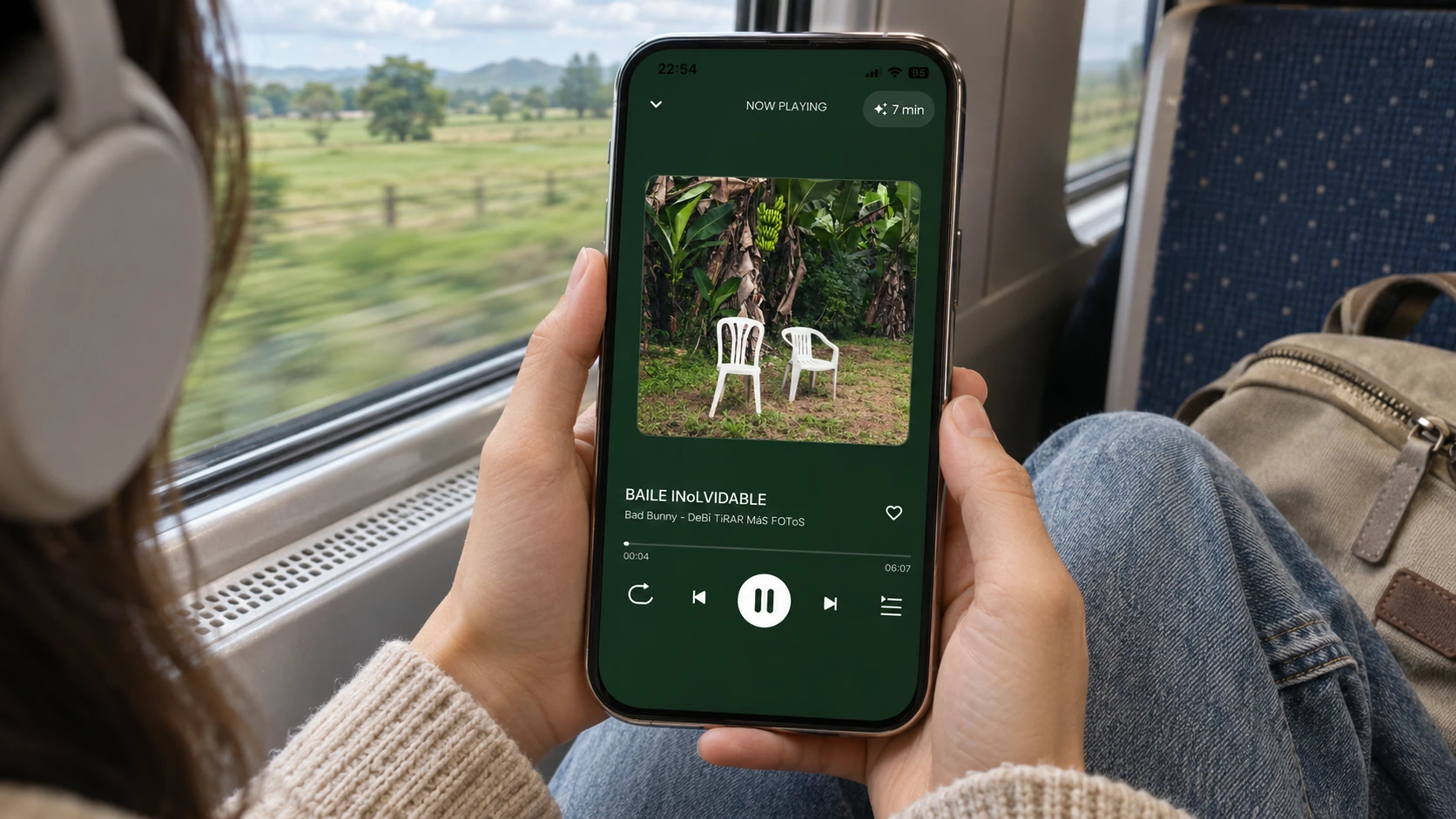
Downloads, CD rips, and shared recordings can leave your music spread across folders. You may see duplicate filenames, an album under more than one artist, or songs that are difficult to find when you just want something to play.
A useful local music library starts with consistent files and track information. Then a player gives you a way to browse the collection and group songs into playlists. Here is what to organize before import and how to keep your library manageable in TuneFab Player.
Keep a clear source collection
Choose one place for the original files, such as a Music folder on your computer. A simple structure like Music / Artist / Album can help you locate an album or replace a missing copy later. Keep a separate backup before renaming, moving, or removing files.
Prepare the collection before copying it to your phone. Do not assume that moving a source folder will update an imported copy in Player. If you need to send files across, follow the computer-to-phone transfer guide.
Browse songs and build useful playlists
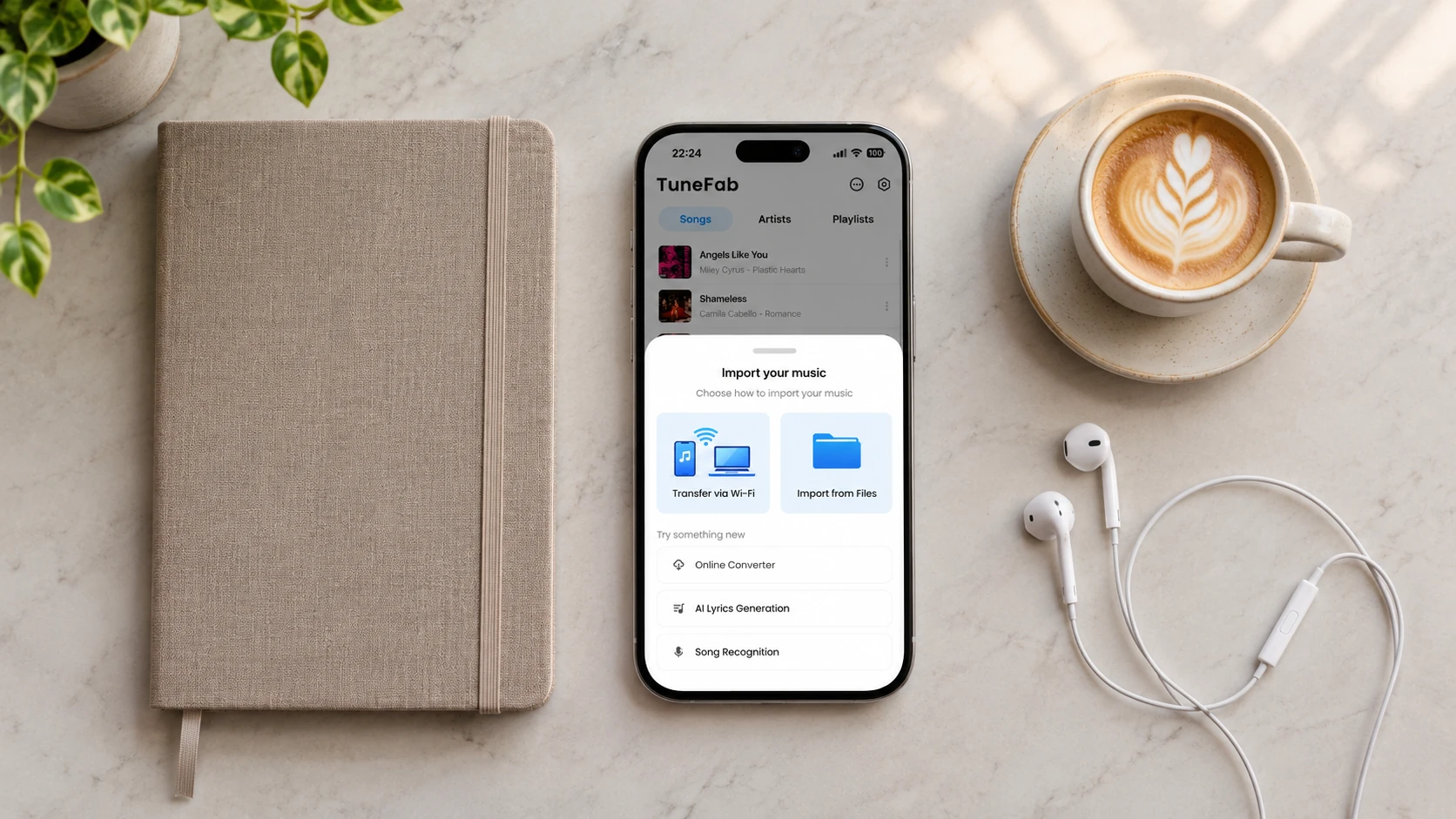
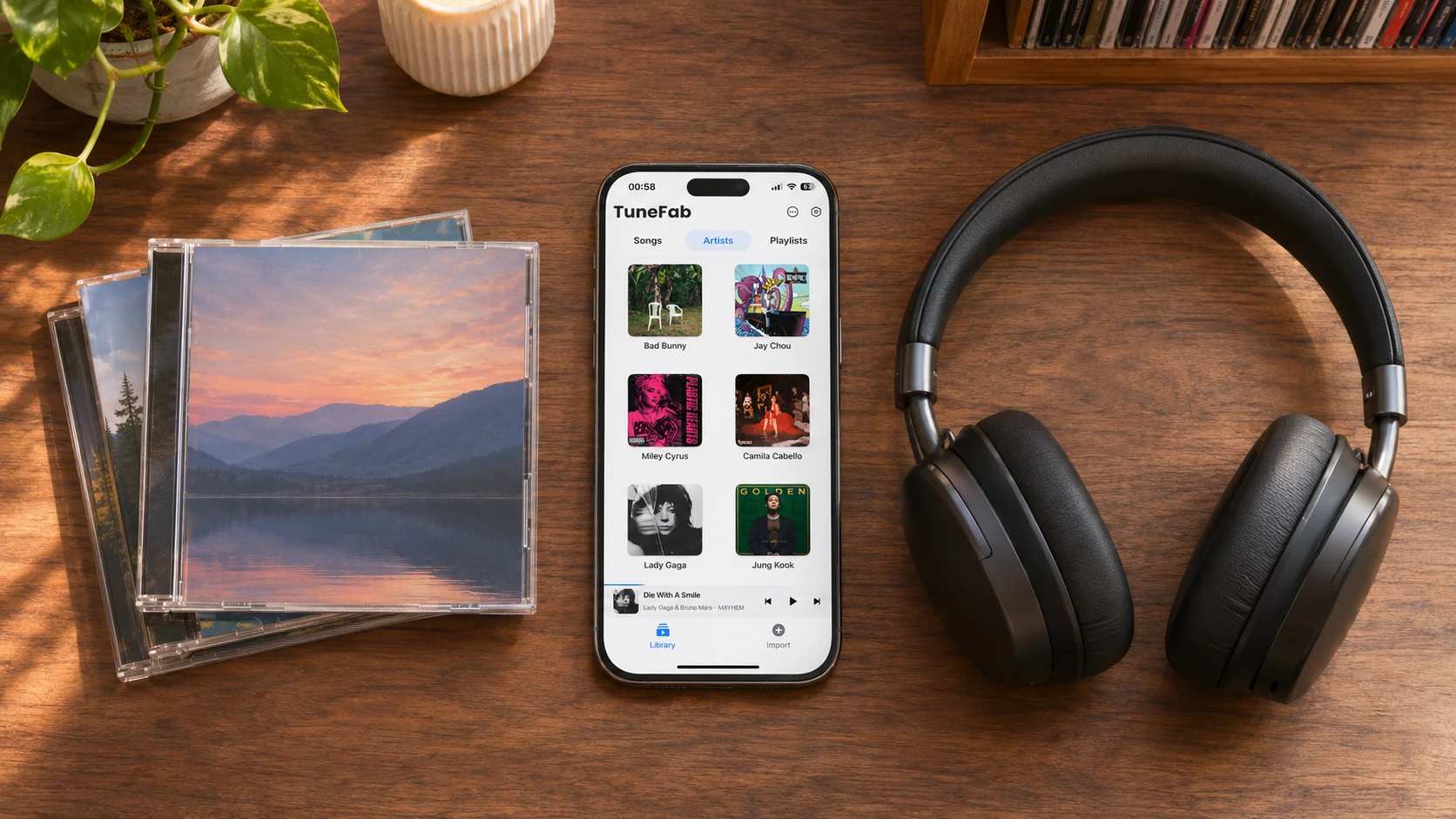
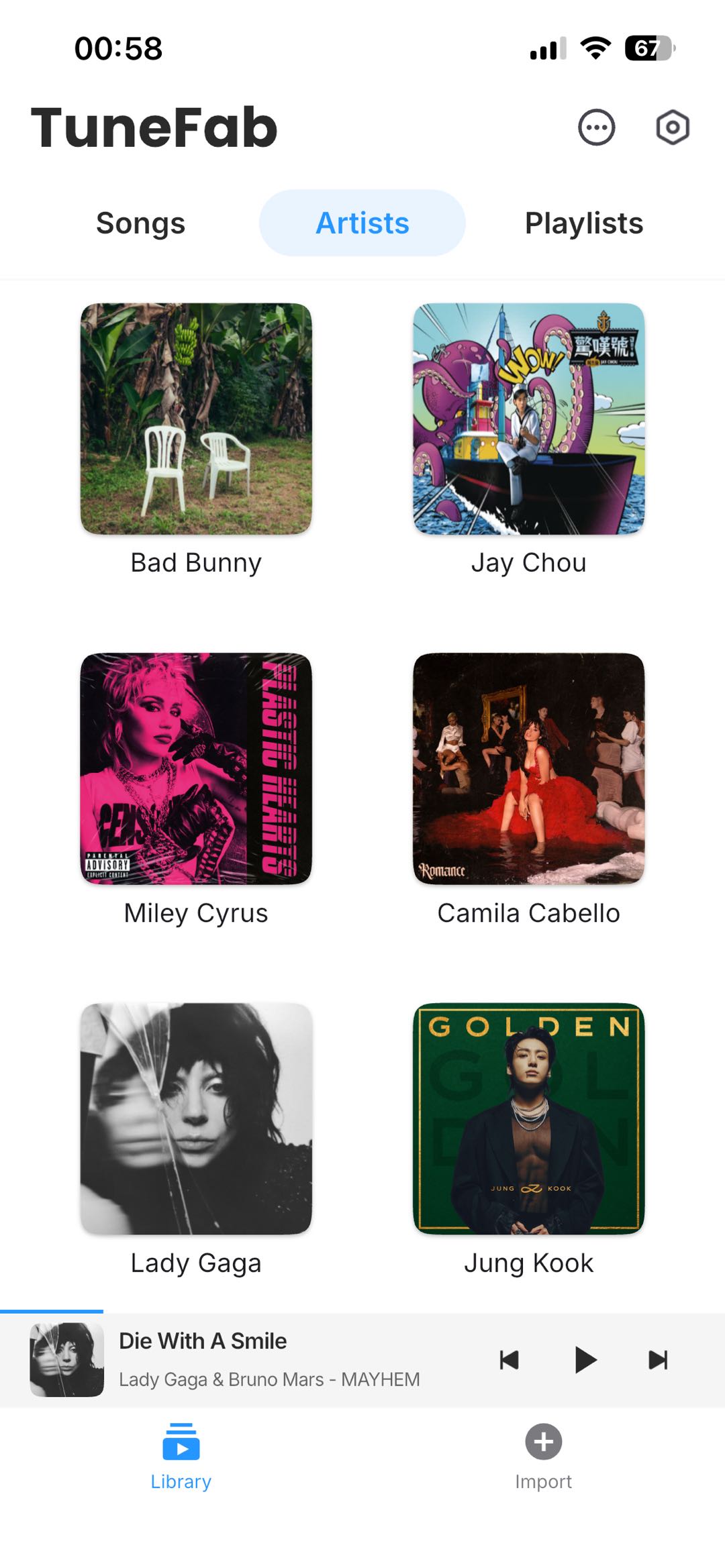
Once the files are ready, import them from Files on iPhone or scan their location on Android. Open Library and check the Songs and Artists views against a few tracks you know.
Use Playlists to group songs around how you listen: a commute, a workout, or a quiet evening. Album and artist information help identify recordings; a playlist gives you a listening order that can mix tracks from different albums.
If a song is missing, check the import and scanning steps before adding the same collection again. If titles look unfamiliar, compare the entry with the original file's tags.
Get a music library you can browse
TuneFab Player brings local songs into a library on iPhone, iPad, and Android. Scan a code or tap a store button to install it, then add the collection you have prepared.


Add new songs without another Downloads pile
If you need a new audio file, our online audio downloader can prepare matched audio from a supported Spotify song link. Review the title and source before saving the MP3, and download only music you own or have permission to save.
Put the finished file with your source collection, check its tags, then import or scan it once. That keeps the next addition part of the library you already use.