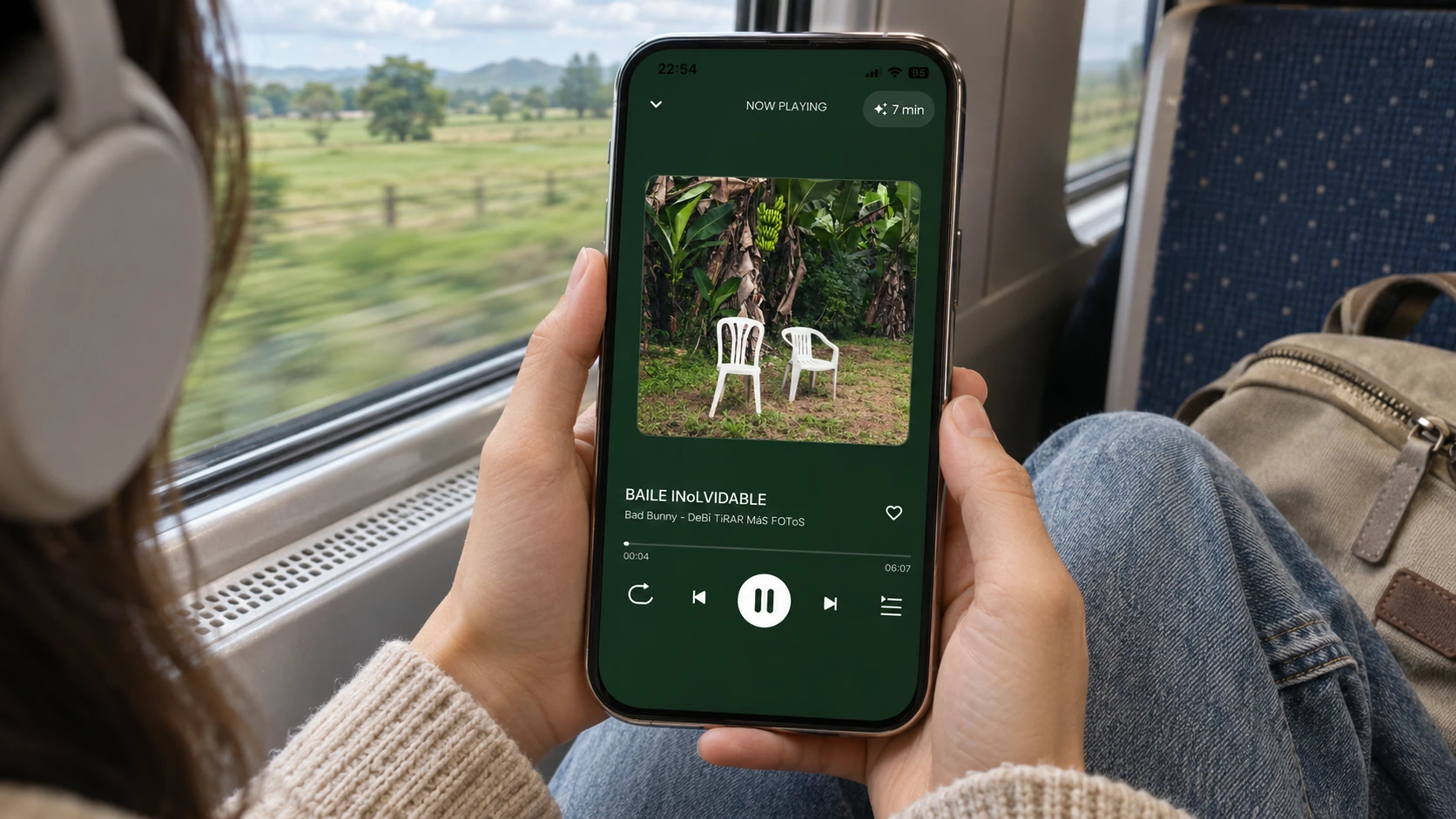
Your music may still be on your computer: MP3 downloads, albums ripped from CDs, or a collection you have kept for years. For a commute, a workout, or a trip, you may want to bring some of those songs along on your phone. Saving them locally lets you listen on a flight or a train with patchy reception, without using mobile data for playback.
TuneFab Player lets you transfer music from a PC or Mac to iPhone or Android over Wi-Fi. Below are the steps, plus other ways to add songs when a wireless transfer is not the right fit.
Transfer music from PC or Mac to your phone over Wi-Fi
Install TuneFab Player on your phone and have your audio files ready on your computer.
- Connect your phone and computer to the same Wi-Fi network.
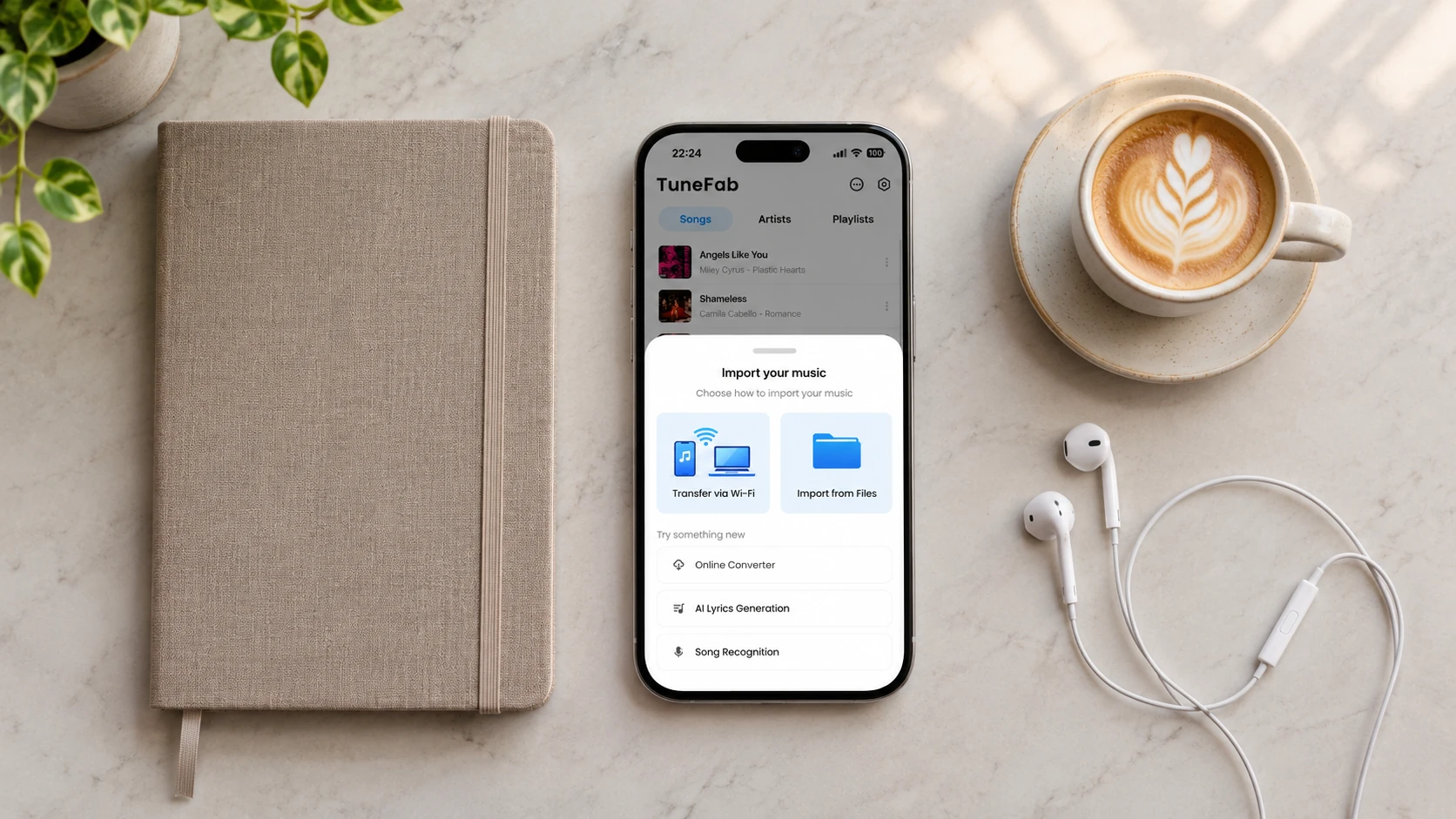
- In Player, tap Import, then Transfer via Wi-Fi to see the transfer address.
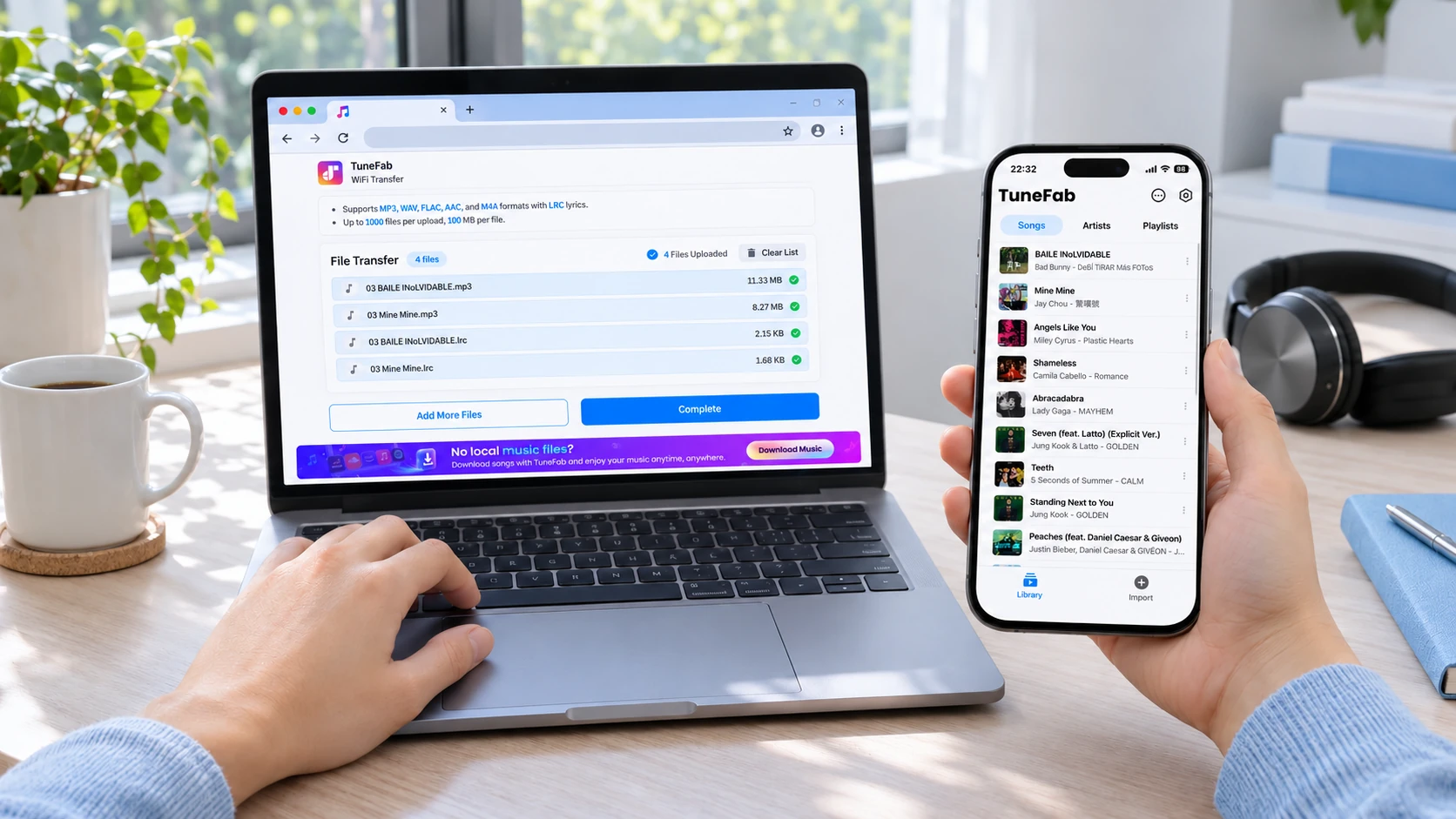
- Enter the full address in your computer browser, including the prefix and any port number shown.
- Choose Add Files or Add Folder, select your music, and choose Start Upload.
- Keep your phone unlocked and on the transfer screen until the upload finishes. Open your Player library and play a transferred song.
On iPhone, this lets you add MP3 files from your PC without iTunes. Songs go into TuneFab Player rather than the Apple Music library. The same browser workflow works with Android.
If the address will not open, guest or public networks may be blocking the connection. Follow the Wi-Fi connection checks, or use USB instead.
Other ways to add music to TuneFab Player
| Method | When to use it | What to do |
|---|---|---|
| USB file copy | Your songs are on a computer, but Wi-Fi is unavailable. | Use a file-copy workflow supported by your devices. Then import from Files on iPhone or scan the copied songs on Android. |
| Import from Files | Your songs are already accessible in Files on iPhone or iPad. | In Player, tap Import, choose Import from Files, and select your audio. Download any cloud files first. |
| Automatic scanning | Your songs are already saved on your Android phone. | Open Player and allow music or audio access so it can find the files. |
Get TuneFab Player
Browse your transferred music by song, artist, or album, build playlists, and listen offline. Available for iPhone, iPad, and Android.
Scan a QR code below on your phone, or tap the store button to install.


No music files yet? Download audio online
Start with our online audio downloader. Paste a supported Spotify song link and choose Get audio. Review the result, then choose Download MP3.
For Spotify links, the tool finds matched audio; check the title and source before saving. Download on your phone to use Files import or Android scanning, or save on your computer and use the transfer steps above.
Download only audio you own or have permission to save.