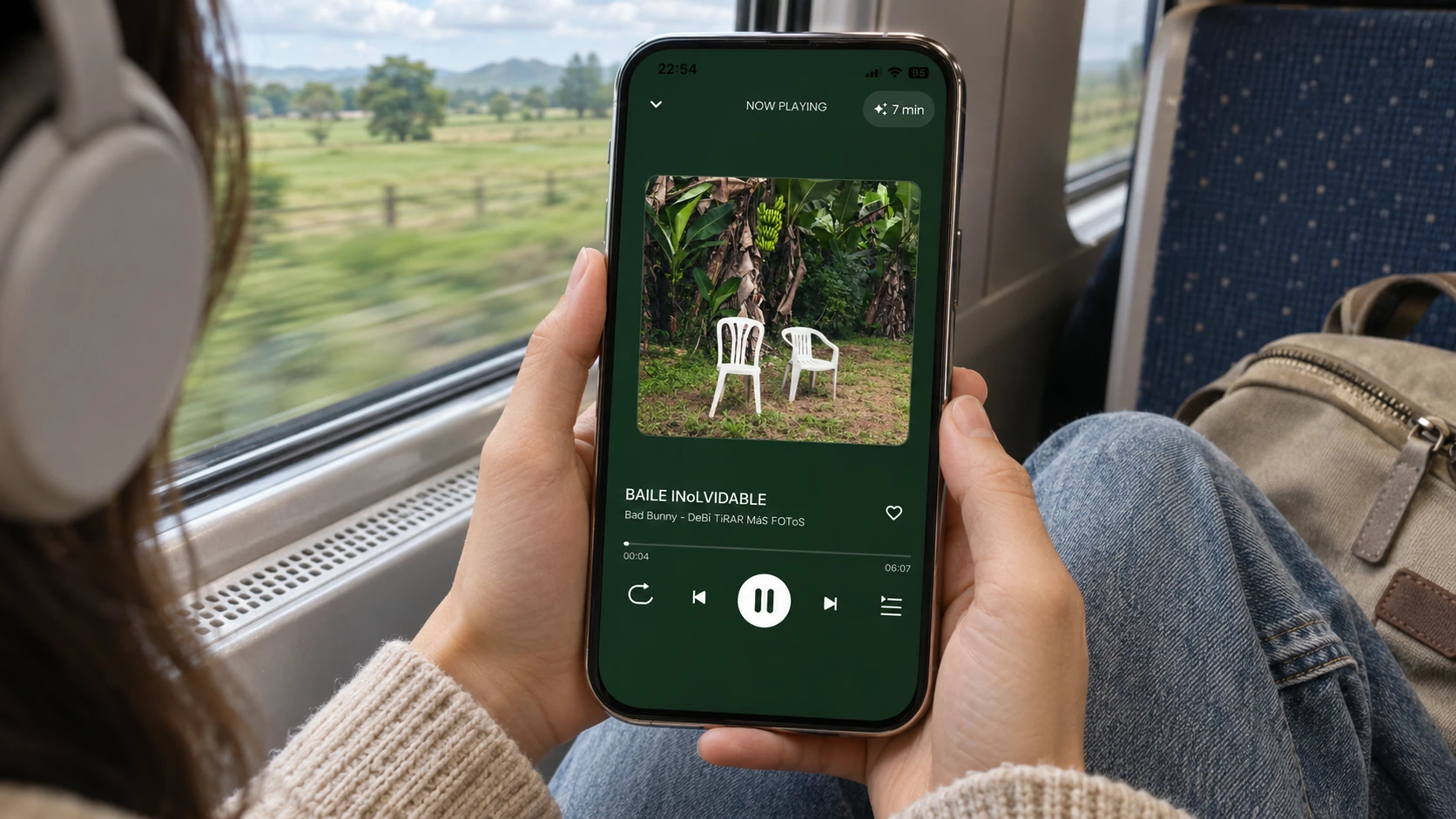
You may have downloaded an MP3 in Safari, saved a purchased album to iCloud Drive, or received a recording from someone. The file is on your iPhone, but finding it each time in Files can be awkward when you want to listen to several songs in a row.
TuneFab Player lets you import MP3 files from Files into a music library without syncing an iTunes library. The songs appear inside Player, where you can browse them and listen offline. Start with the saved file, then follow the import steps below.
Find the MP3 on your iPhone
Open the Downloads list in the browser you used to save the file and check that the download finished. Then locate it in the Files app. Browse On My iPhone, iCloud Drive, or the folder chosen for your downloads; Recents can help you find a file you just saved.
If a file is only stored in the cloud, download it to your device first. You need an accessible audio file, not just a song link or a streaming app's offline-download entry.
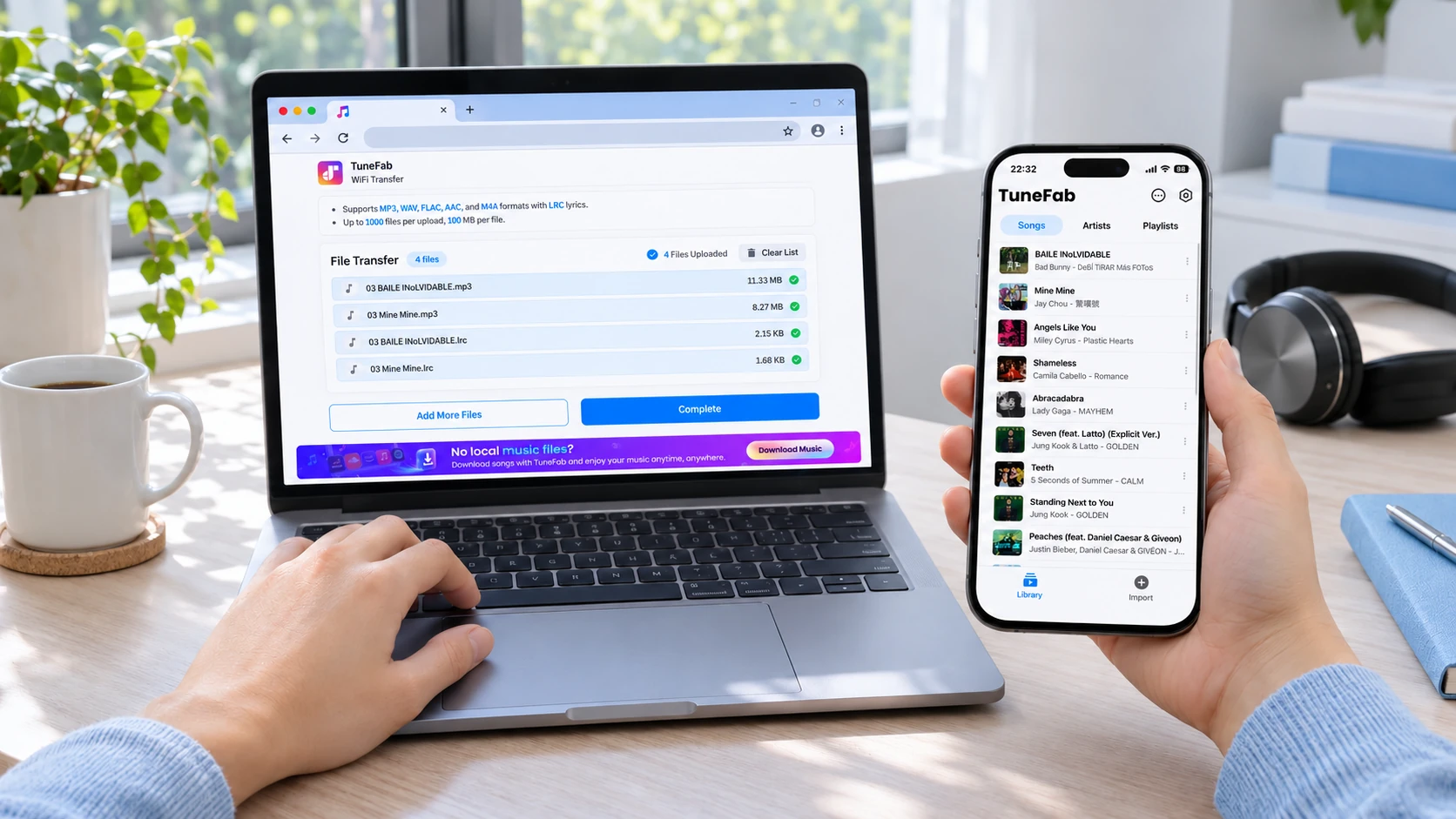
If the music is still on your computer, use Wi-Fi transfer from PC or Mac instead of looking for it in the iPhone's Files app.
Import MP3 files into TuneFab Player
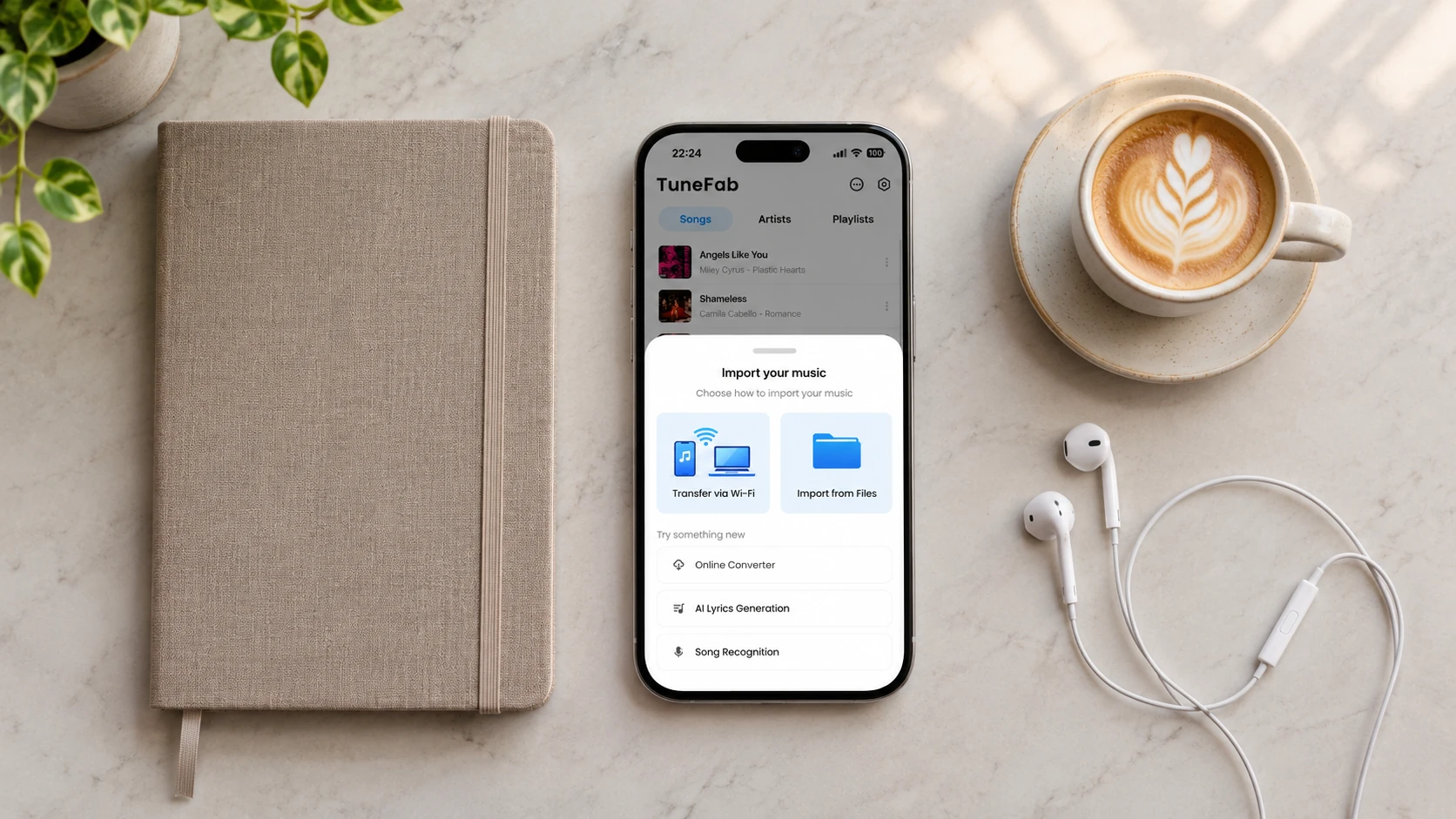
- Open TuneFab Player and tap Import in the bottom navigation.
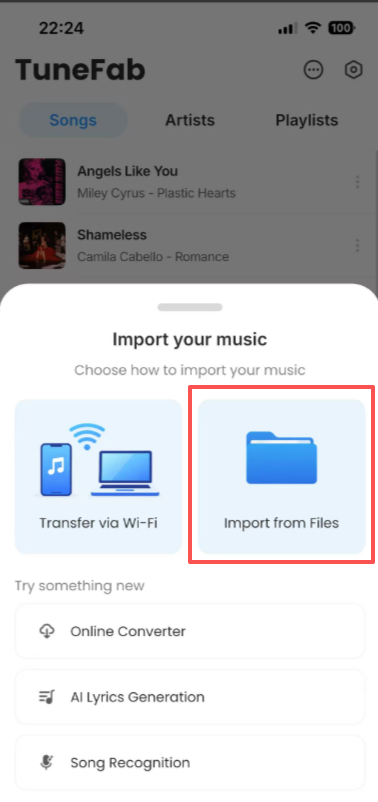
- Under Import your music, choose Import from Files.
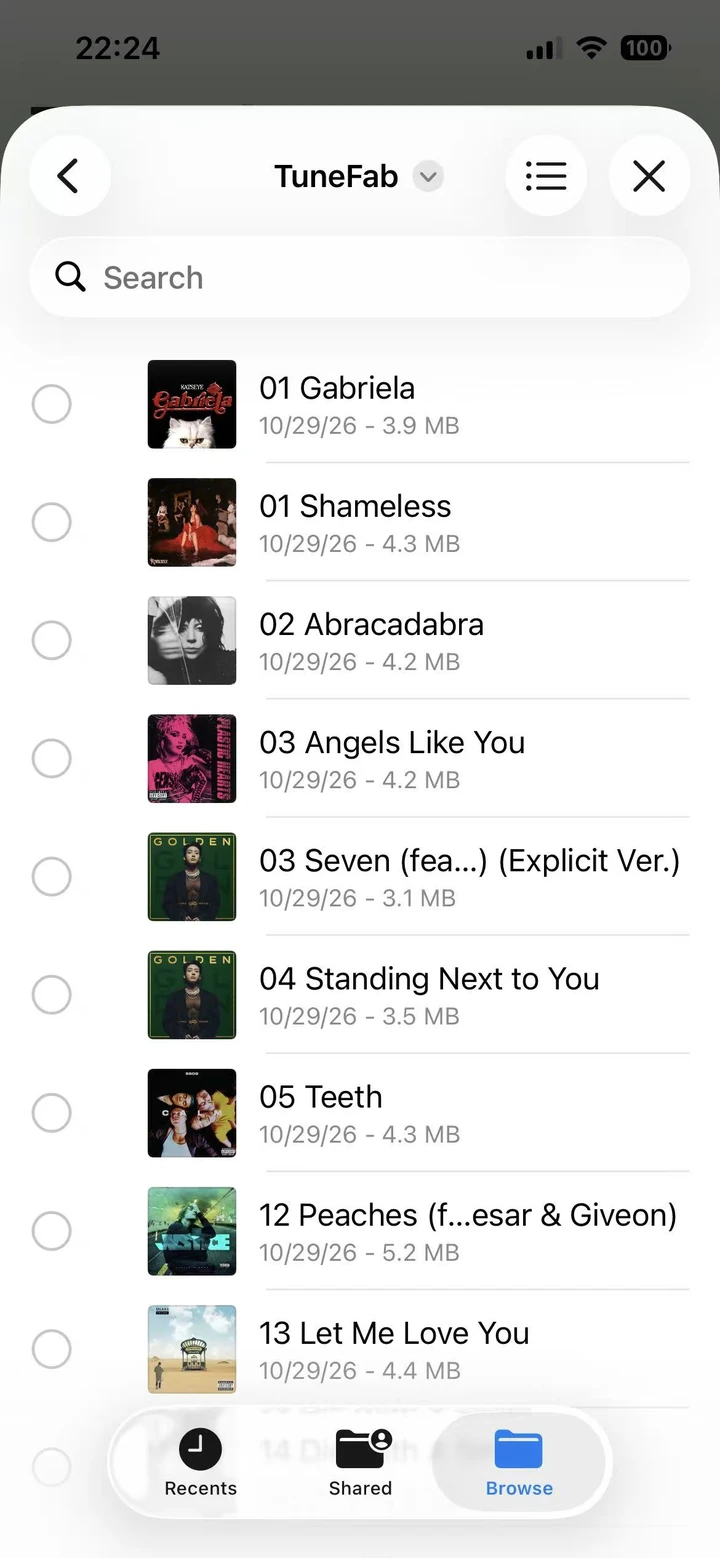
- Use Browse or Recents to find your music, then select the audio files to add.
- Wait for the import to finish. Open Library, choose Songs, and tap an imported track to play it.
This adds songs to TuneFab Player. It does not add them to the Apple Music app. You can select the files you need without setting up a computer library first.
Create an offline MP3 playlist on your iPhone
Once your MP3s appear in Library → Songs, you can add them to a playlist and listen offline.
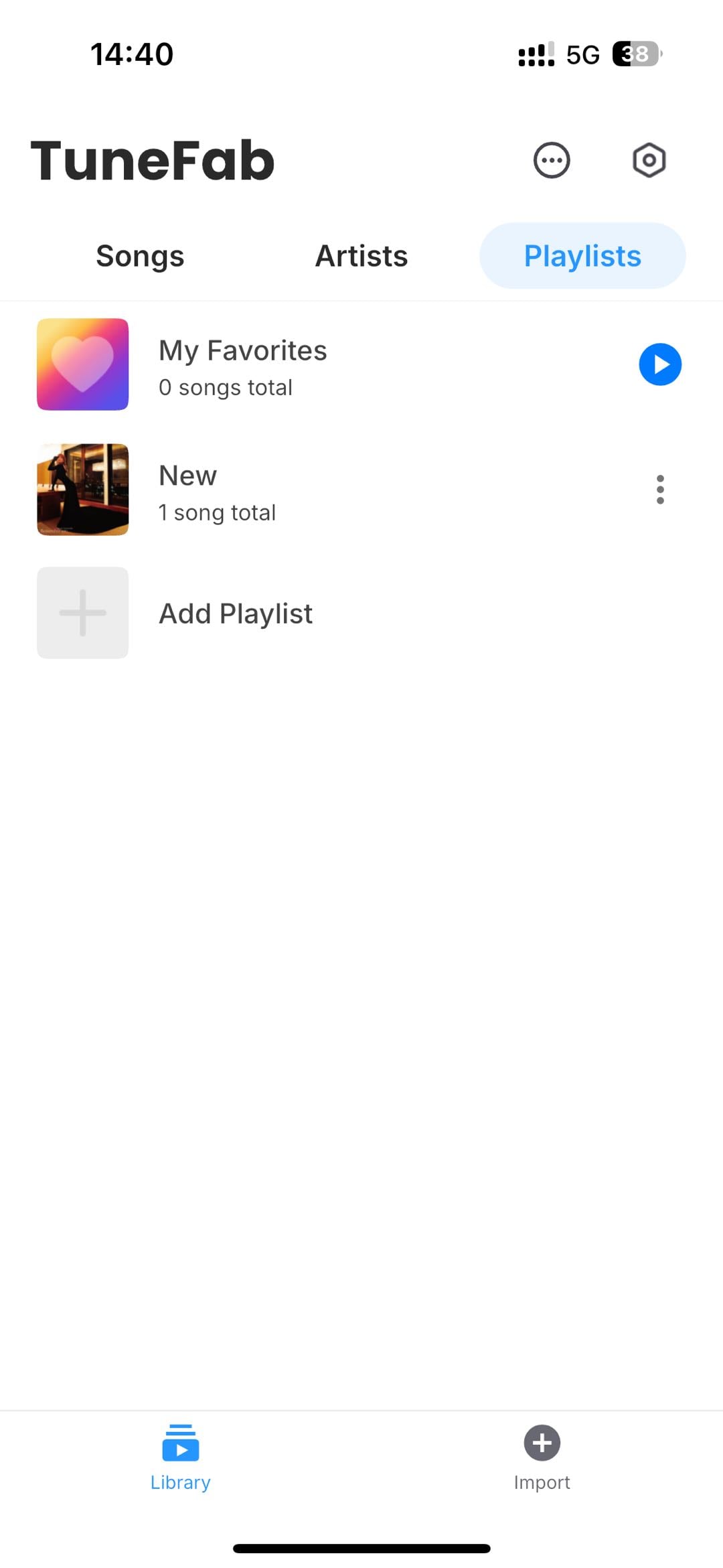
- In TuneFab Player, go to Library → Playlists and tap Add Playlist.
- Name your playlist and add the MP3s you imported.
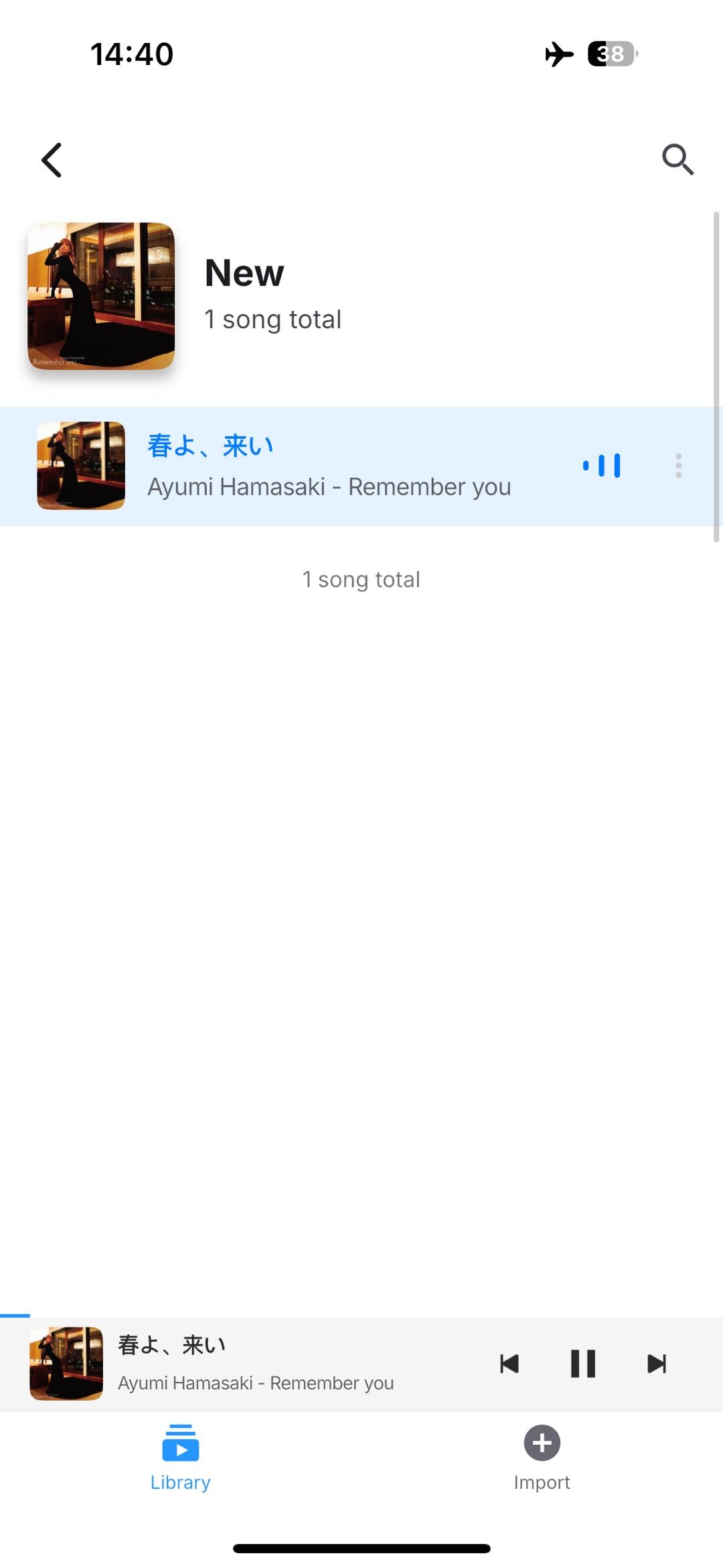
- Turn on Airplane Mode and make sure Wi-Fi is off. Open your playlist and tap a song to check that it plays offline.
If the file does not appear or play
| What you see | What to check |
|---|---|
| The MP3 is missing from Downloads | Check the browser's completed-download list and the folder it saved to. |
| Files shows a cloud item | Wait until the audio has downloaded and can be opened on the device. |
| The file is in Files but absent from Player | Select it through Import from Files and let the import finish. |
| The imported title looks different | Look for the song title or artist stored in the file, which may differ from its filename. |
| One file will not play | Confirm it is complete, then check audio format compatibility. |
For further help, use the iPhone import walkthrough or audio format compatibility.
Get TuneFab Player for iPhone and iPad
Scan the App Store code or tap the button to install Player. Once your songs are imported, you can return to your library instead of opening each audio file separately in Files.

Need an MP3 to start with?
Open our online audio downloader in your iPhone browser and paste a supported Spotify song link. Choose Get audio, review the matched title and source, and save the ready file with Download MP3. Then return to Player and import it using the steps above.
Save only audio you own or have permission to download.