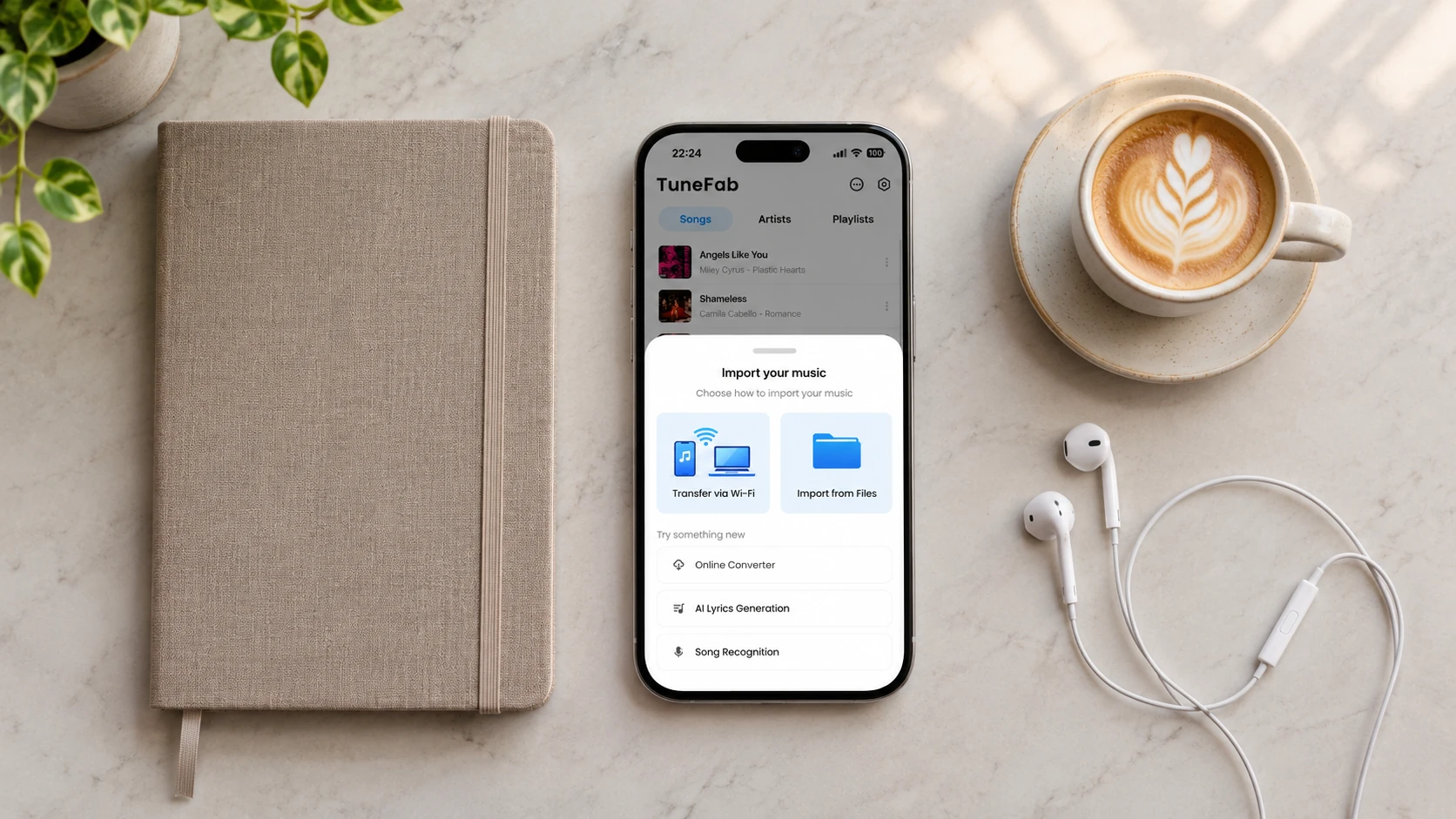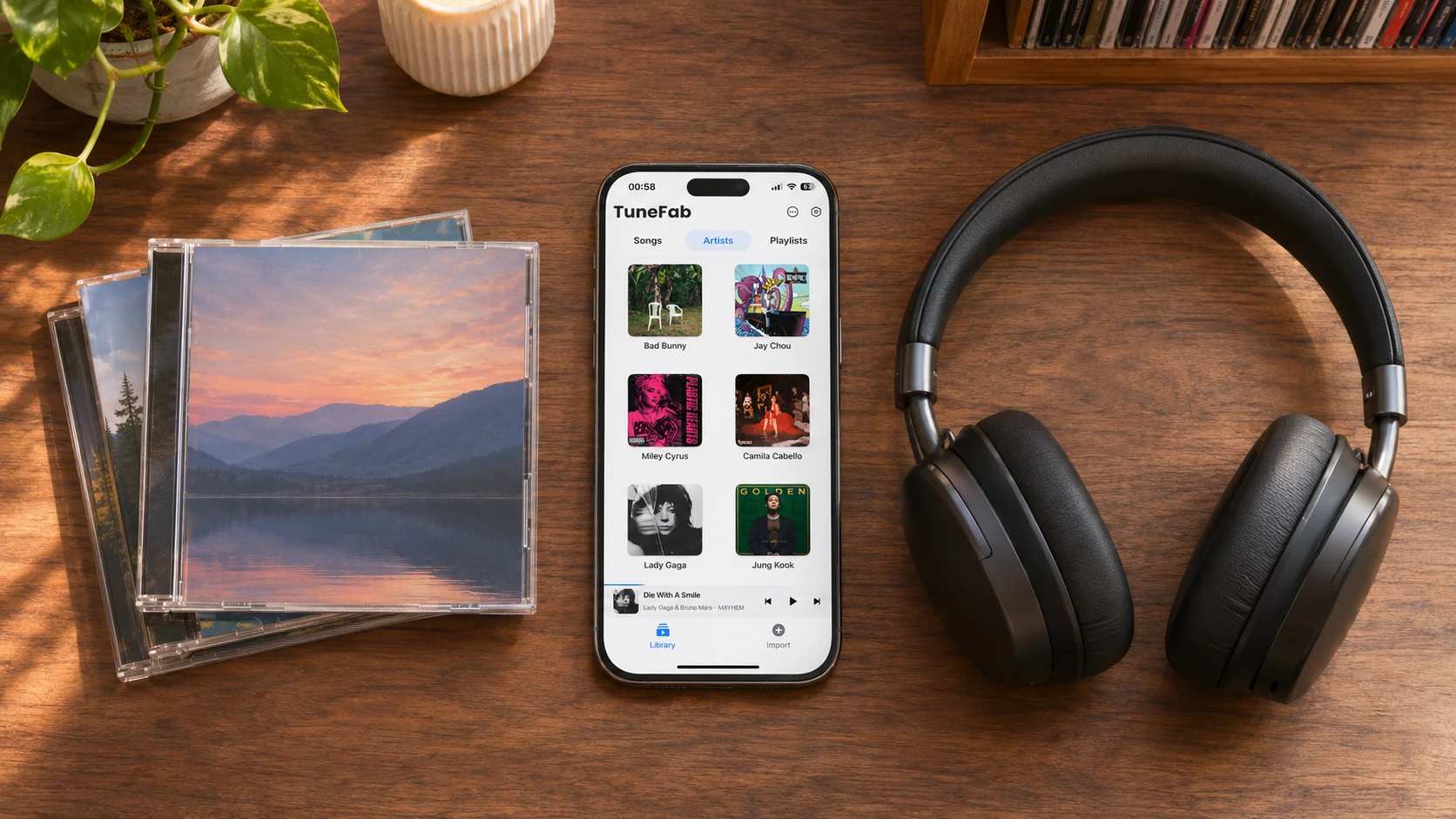
Want to convert Spotify to MP3 on your iPhone and keep the songs in a music library you can play offline? With TuneFab Player, you can open Online Converter from the app, save the resulting MP3 in your browser and import it from Files. You can complete the process on your phone without using a computer or iTunes.
The key is knowing where the saved file goes. This guide takes you through the conversion, shows you how to find the MP3 on your iPhone and explains how to add it to TuneFab Player for listening.


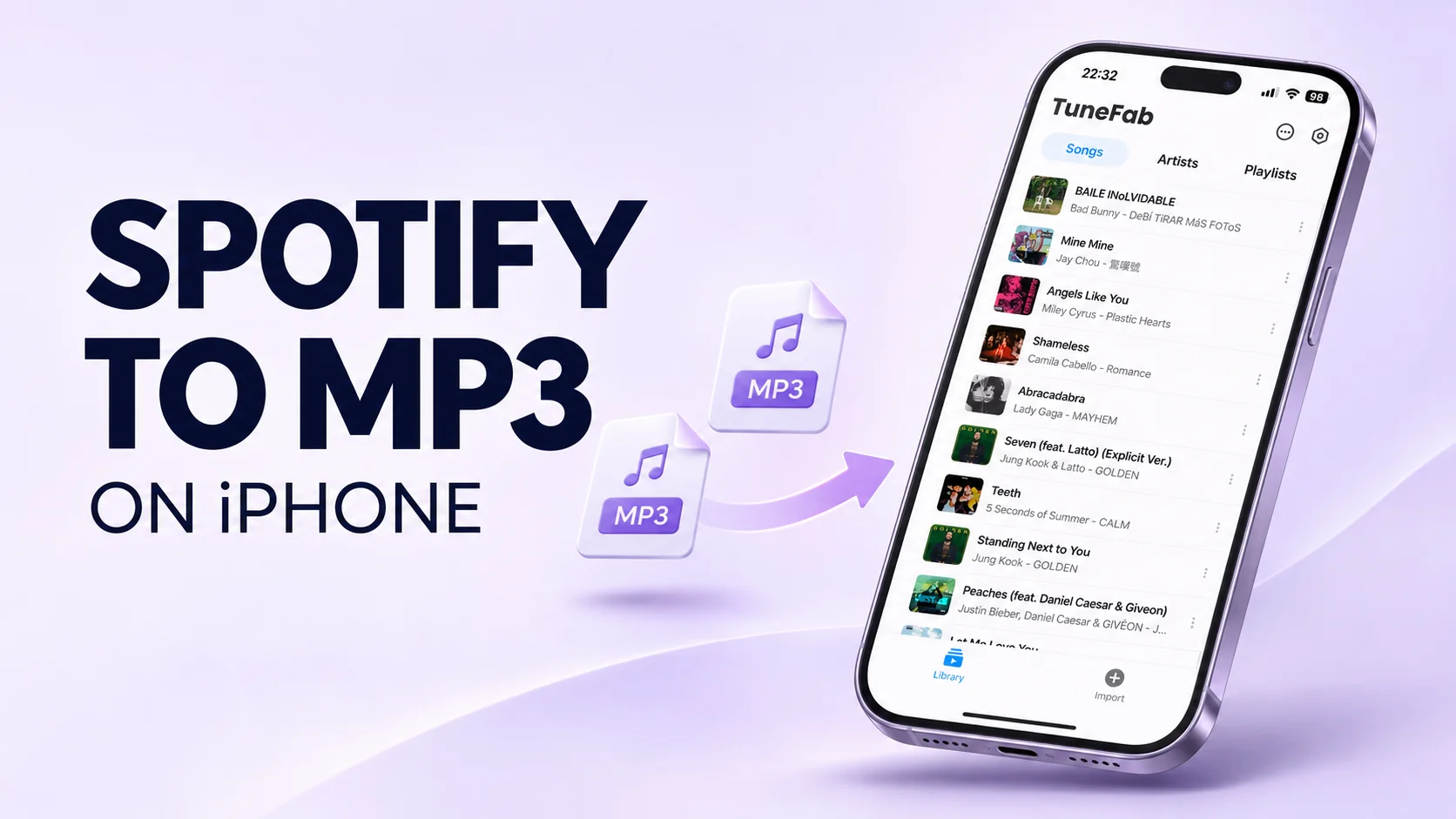
How to Convert Spotify to MP3 on iPhone
Before you start, install TuneFab Player on your iPhone, keep an internet connection available and make sure there is enough storage for your audio files. The browser instructions below use Safari. If your link opens in another browser, use that browser’s file list to check where the MP3 was saved.
The converter uses your Spotify link to identify the music and find matching audio. Check the result before saving so that you keep the recording you want.
Step 1. Copy the Spotify Song Link
Open Spotify and find the song you want to convert. Check its title and artist, especially if the same song has a live version, a remix or a remastered release.
Open the song’s menu, choose Share and copy its link. For your first conversion, use a link to one song so that it is easy to check the result and follow the file into your library.
Step 2. Open Online Converter from TuneFab Player
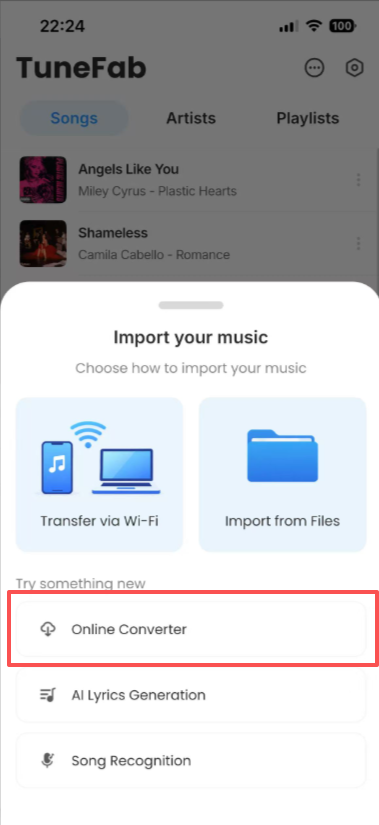
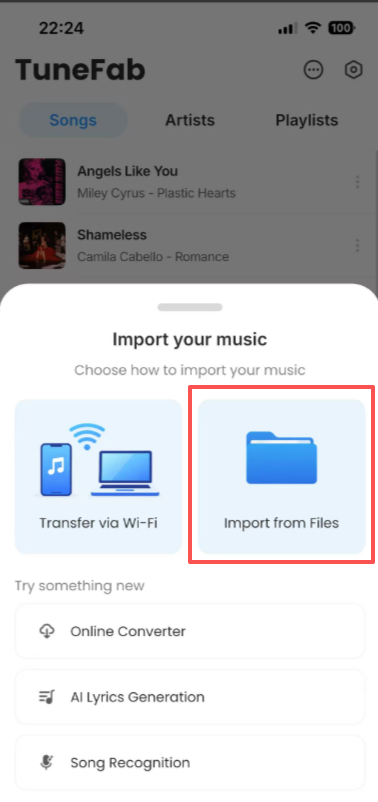
Launch TuneFab Player and tap Import. Under Try something new, choose Online Converter. The tool opens in your phone’s browser.
Paste the Spotify song link into the input box and select Get audio. Wait for the converter to prepare the result. Review the song title, artist and duration to confirm that it is the recording you want to keep.
Step 3. Save the Converted MP3
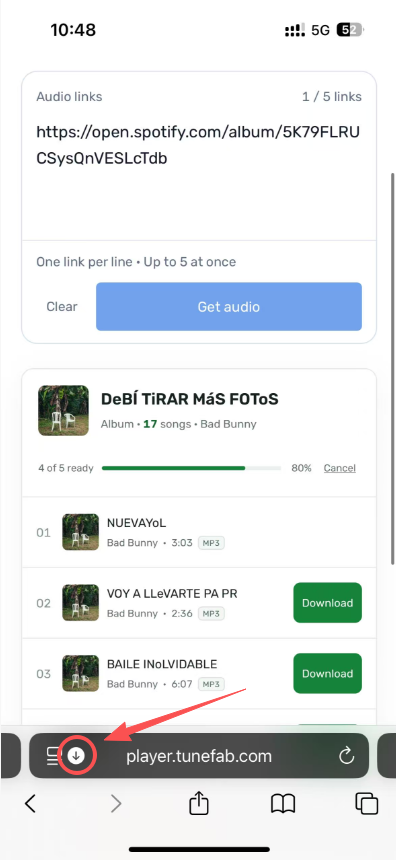
When the MP3 is ready, tap its save button. If Safari asks you to confirm the file save, follow the prompt and wait until the file finishes saving before leaving the page.
In Safari, open the Downloads list to check the file’s status and name. A conversion result appearing on the webpage does not mean the MP3 has already been saved to your phone.
Remember the file name or the folder it was saved in. You will use that location when choosing the MP3 in TuneFab Player.
Step 4. Import the MP3 and Start Listening
Return to TuneFab Player and add the saved file:
- Tap Import → Import from Files.
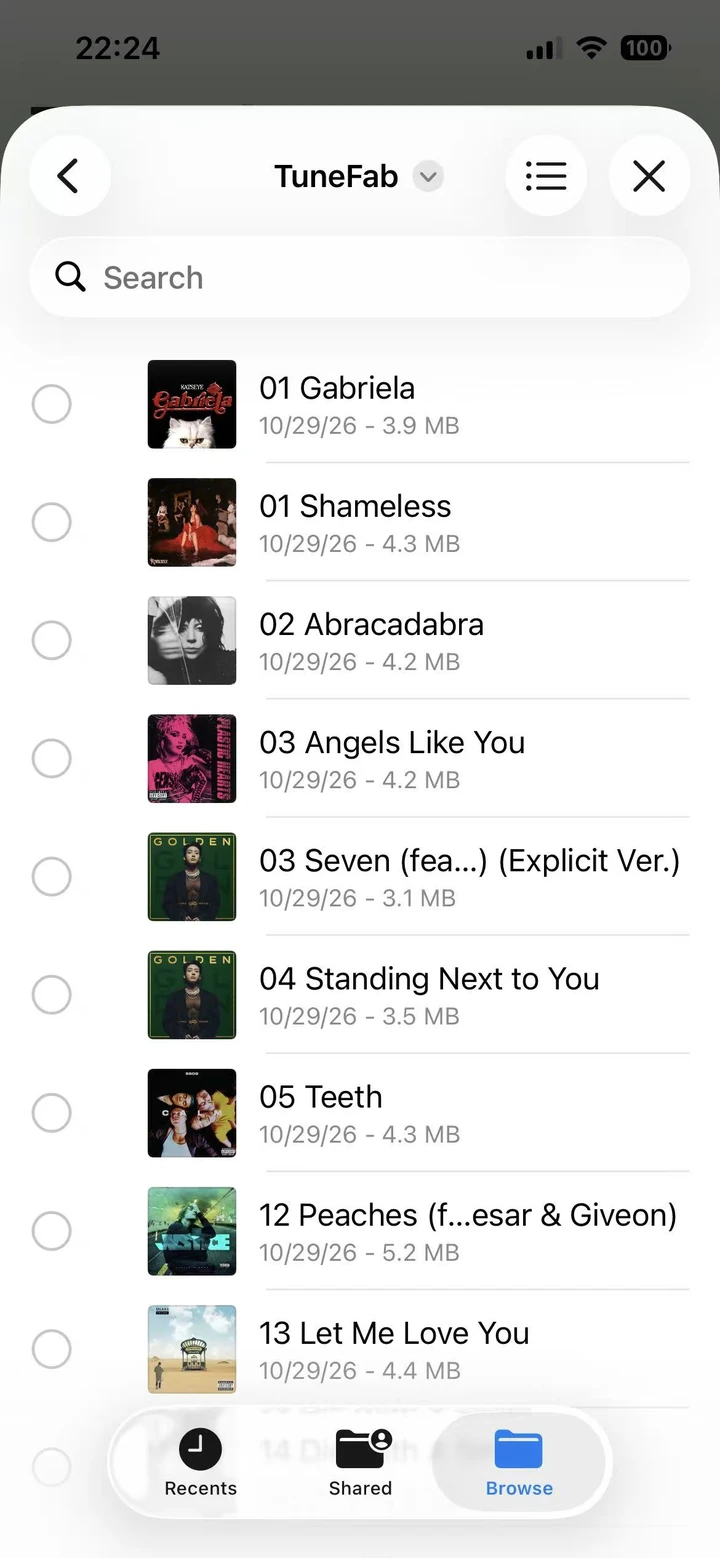
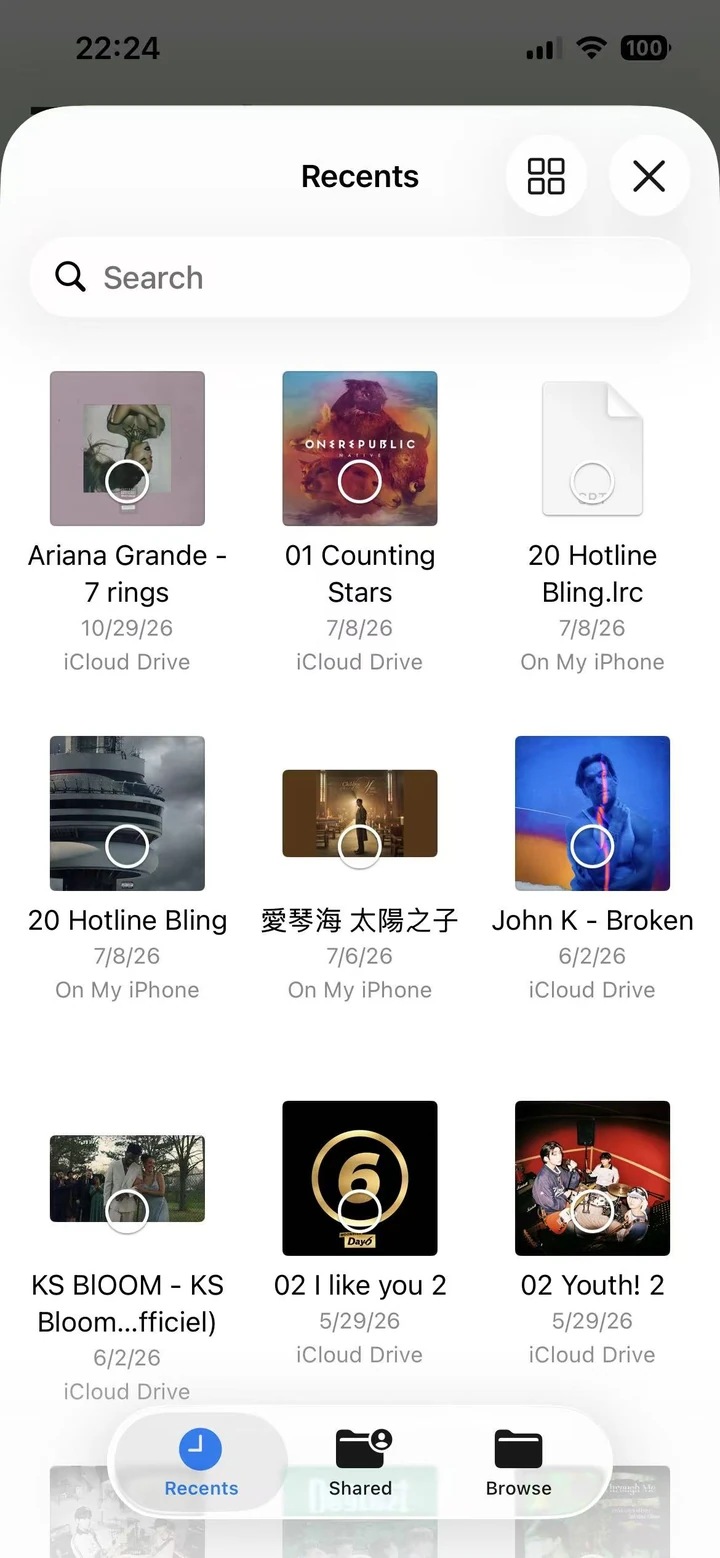
- Choose Browse to open the folder containing the MP3, or use Recents to find the recently saved file.
- Select the audio file and wait for the import to finish.
- Open Library → Songs, then tap the imported song to play it.
Once the song is imported, you can add it to a local playlist alongside other music in Player. Before taking it on a trip, briefly turn off Wi-Fi and mobile data and play the imported track to check that it is ready for offline listening.
Where to Find the Saved MP3 on Your iPhone
If you are not sure where the file went, start with Safari’s Downloads list. Check that the file has finished saving, then use the Files app to locate it.
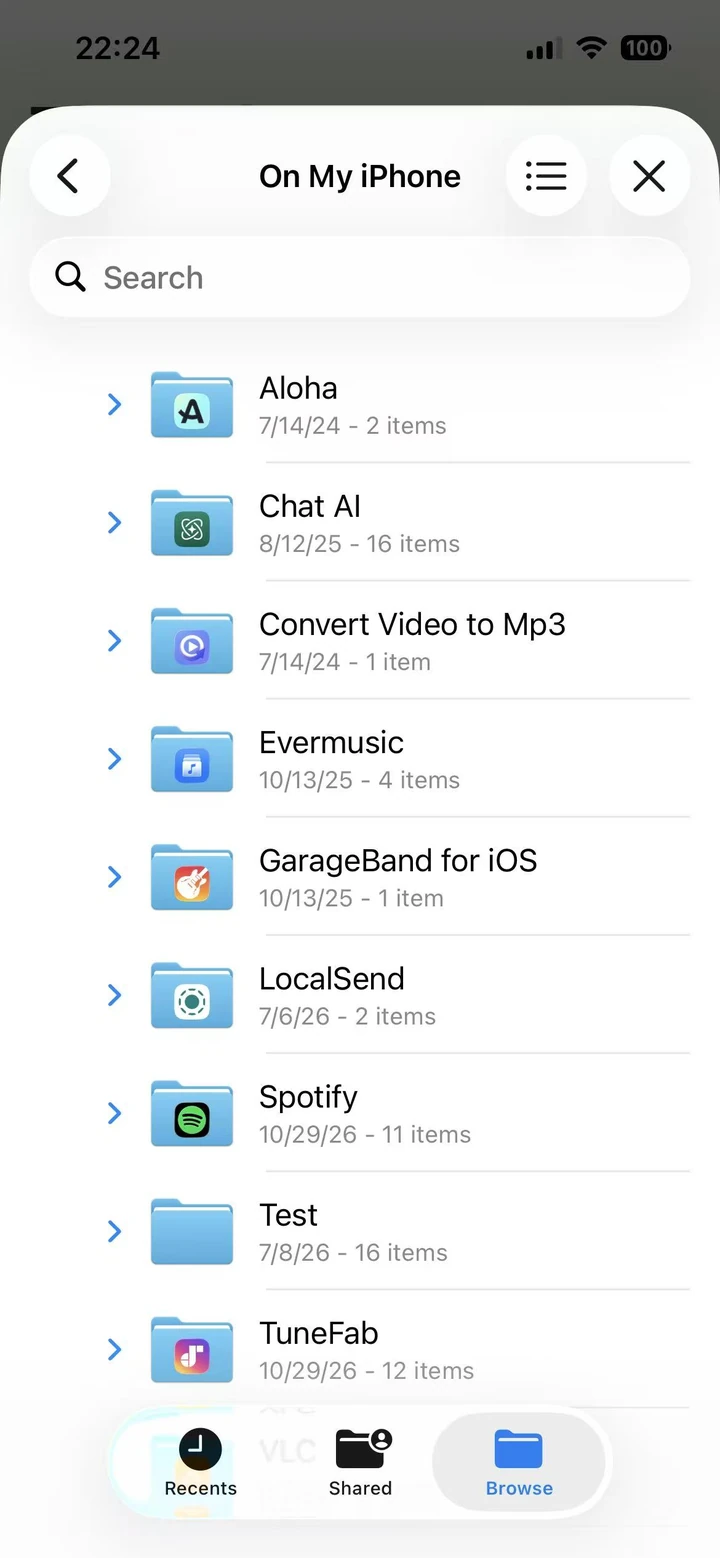
Open Files → Browse and check the location used for your browser saves. The MP3 may be in iCloud Drive → Downloads, On My iPhone → Downloads or another folder selected in your browser settings. You can also use the search field in Files to look for the file name or .mp3.
If the file is stored in iCloud Drive, make sure it has been saved locally and can be opened before importing it. Keeping your MP3s in a folder you recognize makes it easier to find the next song you want to add.
When you return to Import from Files in Player, select the folder or file location that actually contains the MP3. A file saved on your iPhone is not automatically added to your Player library.
What to Check If the Song Is Missing from Player
If the converted song does not appear in Player, follow the file from the browser to Files and then into the music library.
| What you see | What to check |
|---|---|
| Safari shows a file entry, but you cannot find the MP3 | Check whether the save finished and confirm the destination folder. Use Files to search for its name. |
| The file appears in iCloud Drive | Make sure the audio is available on your device and can be opened, then select it through Import from Files. |
| The MP3 is in Files, but not in Player | Open Import → Import from Files, select the MP3 and let the import complete before checking Library → Songs. |
Try playing the file from Files as well. If it will not open there, check whether the browser save completed before repeating the import.
FAQs About Spotify to MP3 Conversion on iPhone
Q1. Can I convert a Spotify playlist or album on iPhone?
Yes. The online converter also accepts supported Spotify playlist and album links. Copy the link to the collection itself, review the prepared song results and save the MP3 tracks individually. Then use Import from Files to select the files you want to add to Player. You can group imported songs in a local playlist afterward.
Q2. Can I follow these steps on an iPad?
Yes. You can open Online Converter from TuneFab Player, save the MP3 in your browser and use Import from Files to add it on an iPad too. In the file picker, check On My iPad, iCloud Drive or Recents, depending on where the file is stored. The layout may differ from the iPhone screenshots.
Keep Your Converted Music Together with TuneFab Player
Using a Spotify to MP3 converter on iPhone is only the first step. Once the MP3 is saved, import it into TuneFab Player so that you can browse your songs, build local playlists and listen offline.
Get TuneFab Player, start with one song and follow it from the converter into your own music library. Convert and save only audio you own or have permission to use.