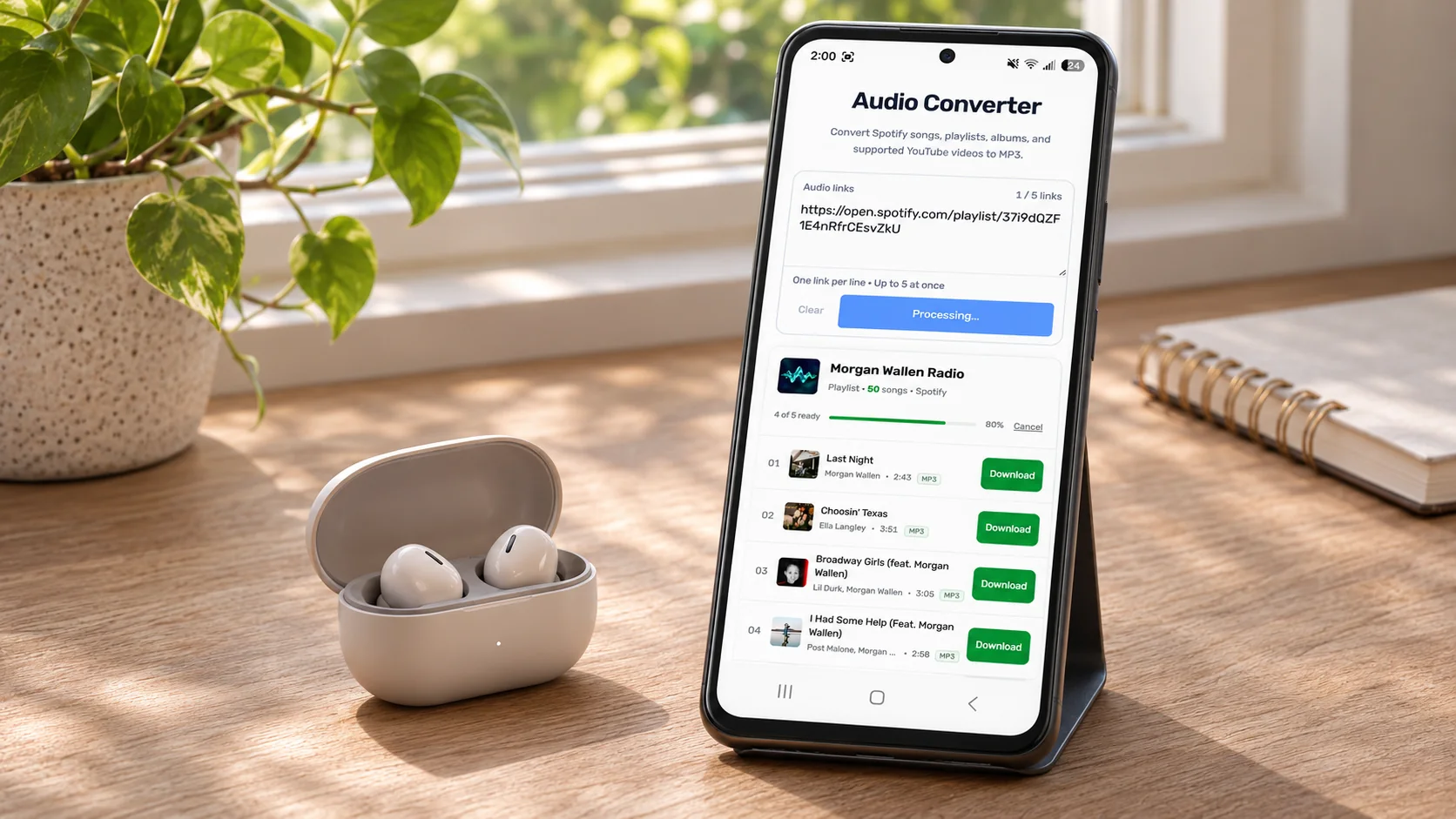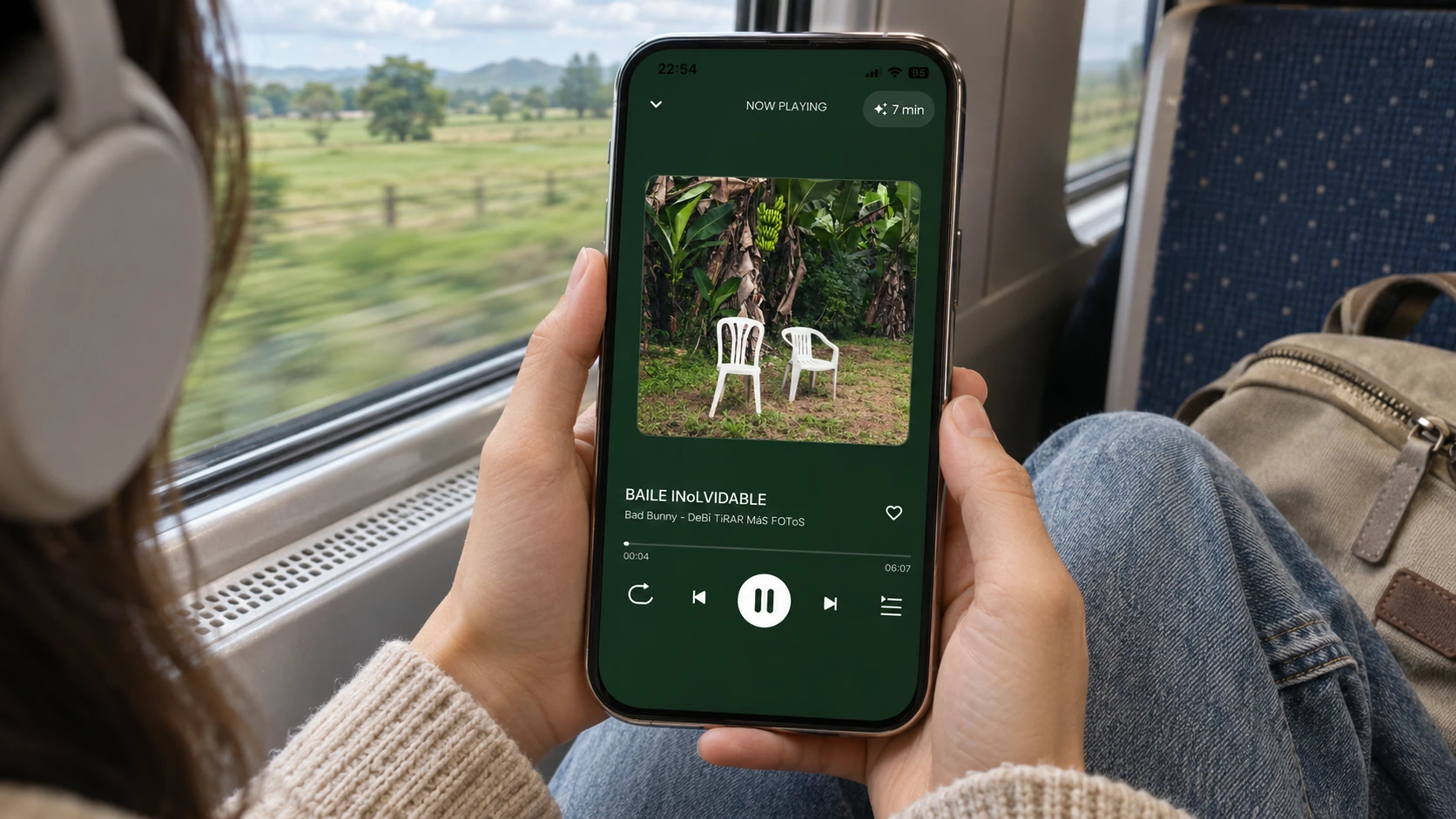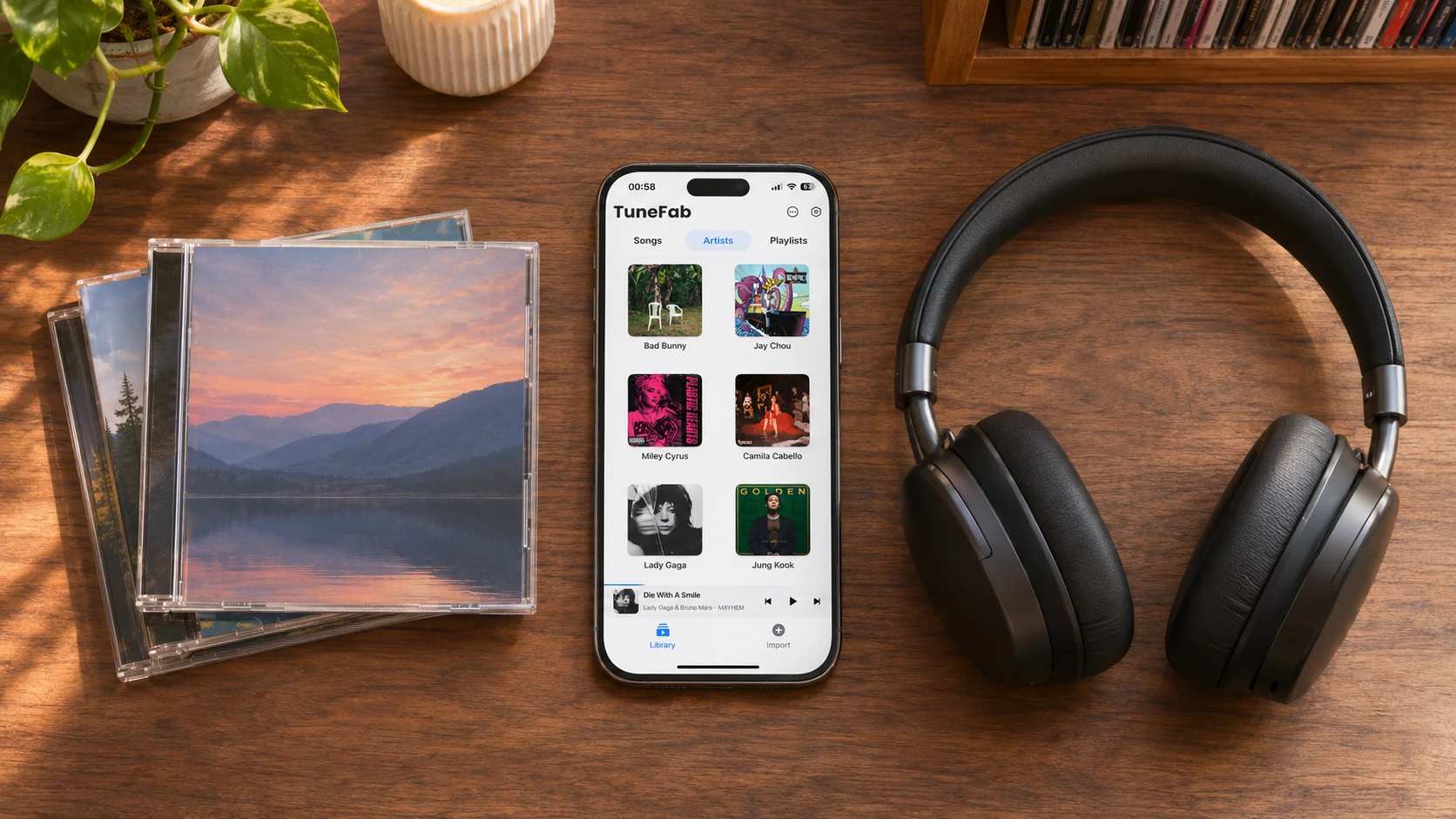
Looking for a Spotify to MP3 converter for Android? TuneFab Player lets you open an online converter from the app, process a Spotify song, playlist or album link in your browser, and bring the resulting MP3 files into your phone’s music library.
Start with one song to learn the process: copy its Spotify link, open the converter, review the matching audio and save the MP3. Then import the file into Player to organize and play it offline.


Why Use TuneFab Player as Your Android Spotify to MP3 Converter?
TuneFab Player combines a shortcut to an online converter with a local music library. You can open the converter from your phone, then use Player to organize and listen to the MP3 files you save.
- Convert directly on Android. Open the online converter from Player and complete the conversion process in your mobile browser.
- Use song, playlist and album links. Paste a Spotify share link and review the available track results before saving the audio.
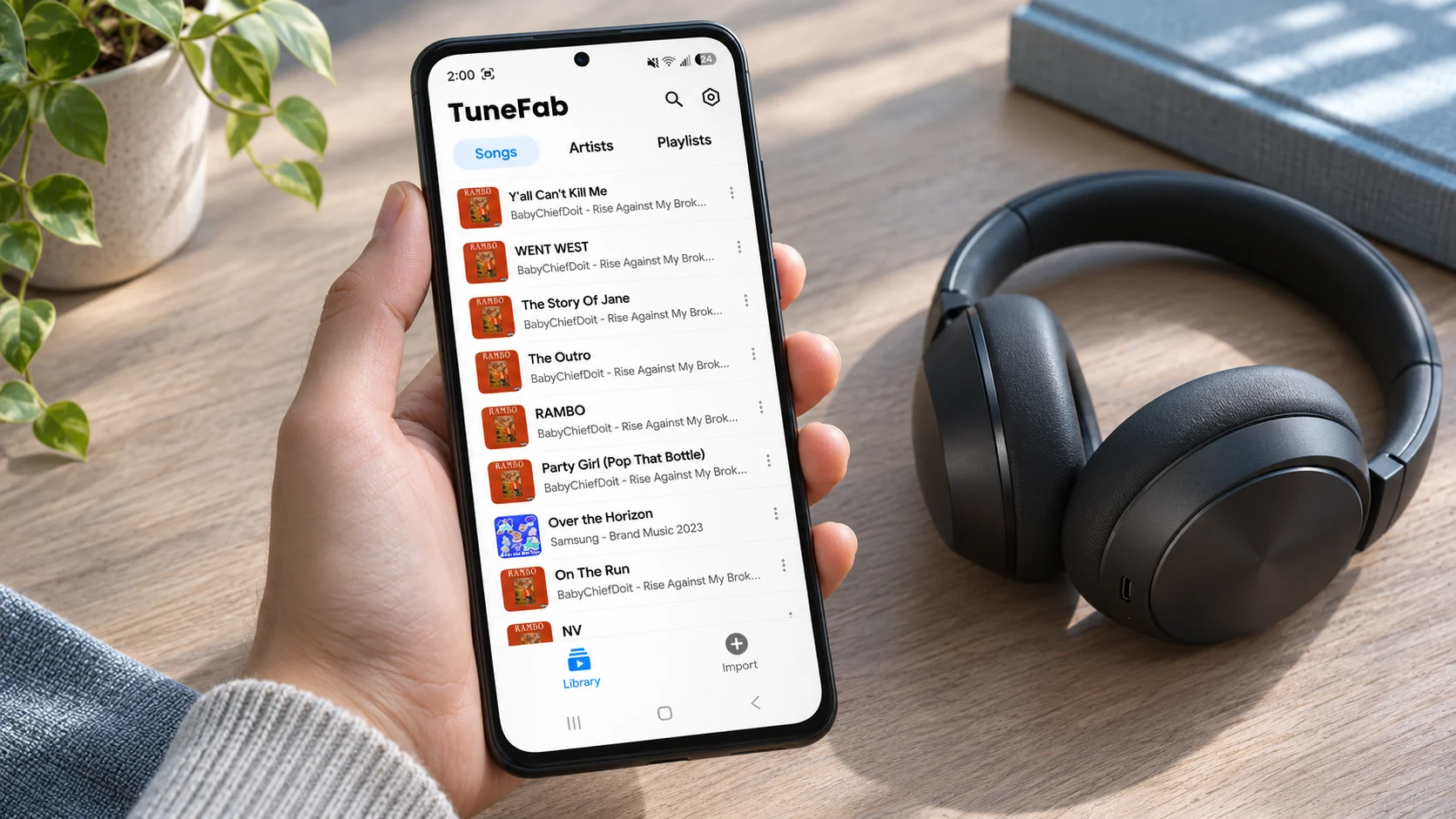
- Build your own music library. Import the resulting MP3 files, browse by song or artist, and organize your own playlists.
- Play local files offline. Once an MP3 is saved and imported, you can listen without streaming it again.
The converter uses a Spotify link to identify the music and find matching audio. You use the converter in your browser; saved MP3 files need to be imported into Player afterward.
How to Use the Spotify to MP3 Converter on Android
Step 1. Install TuneFab Player and Copy a Spotify Link
Get TuneFab Player from Google Play and open it. Allow the music or audio access requested by Android when prompted.
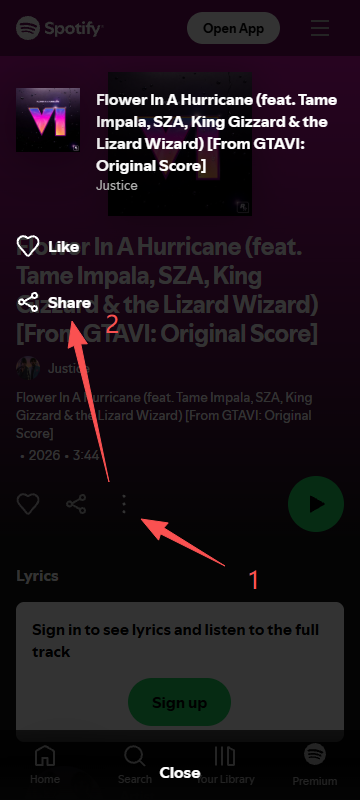
In Spotify, find the song you want to convert, open its menu, and select Share → Copy link. For a playlist or album, copy the share link for that collection.
Step 2. Open the Converter from TuneFab Player
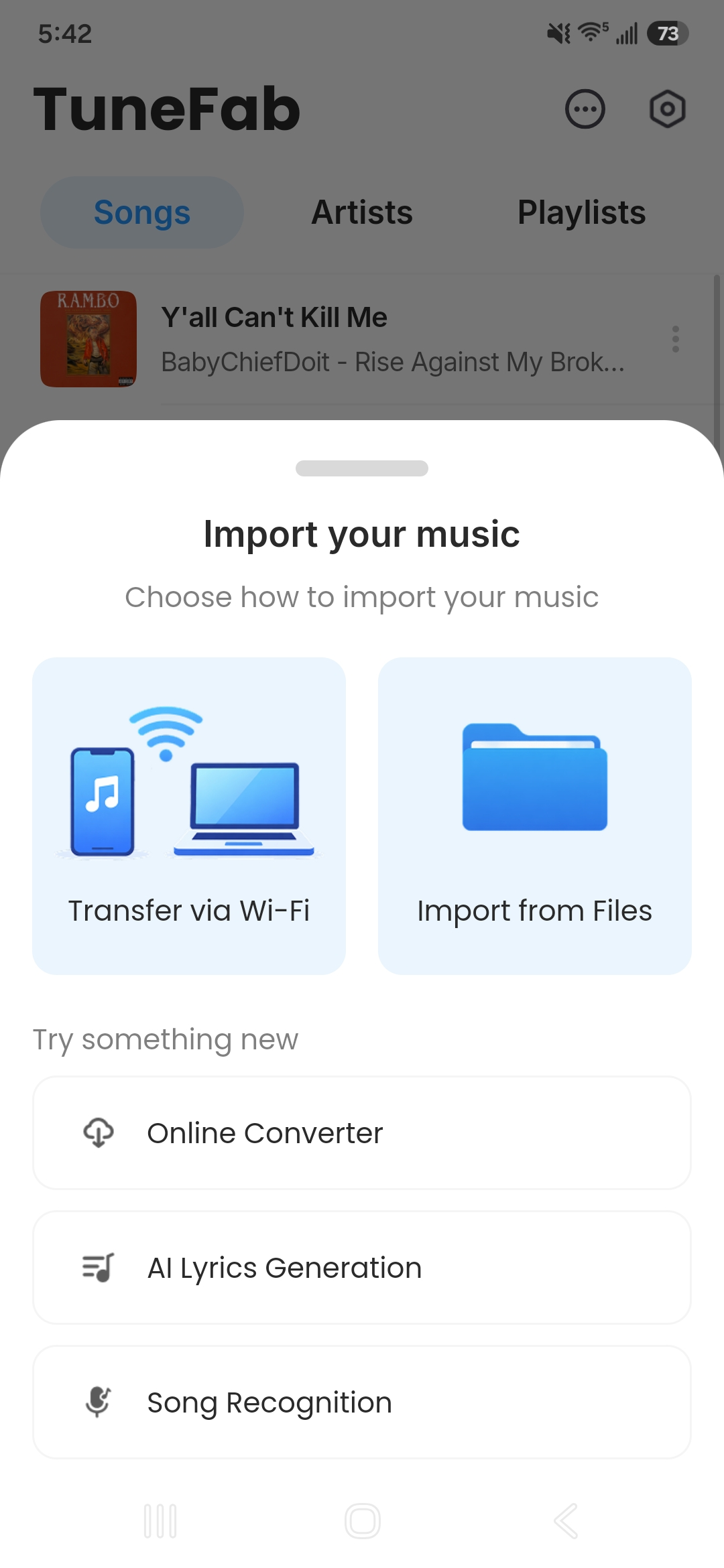
Return to Player and tap Import. Under Try something new, choose Online Converter. The converter opens in your phone’s browser.
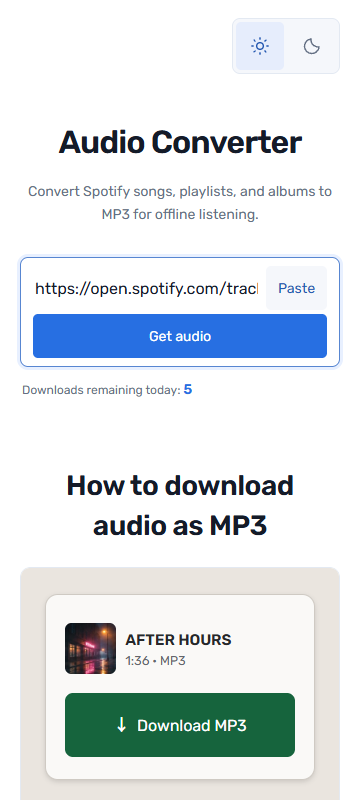
Paste the Spotify link and select Get audio to start processing. The converter identifies the music from the link and prepares the available audio result.
Step 3. Review the Converted Audio and Save the MP3
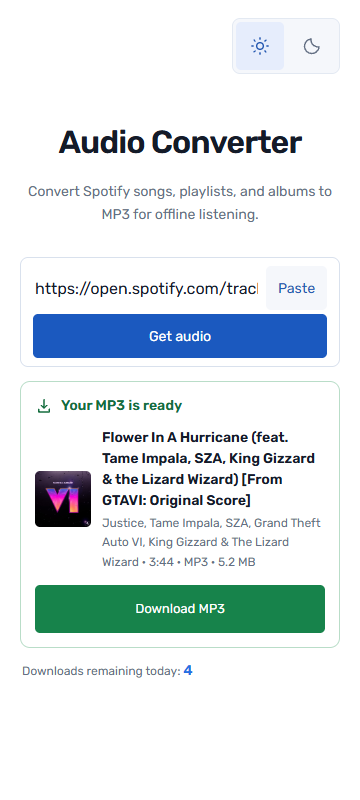
Check the title, artist, duration and source information in the result. Confirm that it is the recording you want, then use the result’s MP3 save button.
Wait until the file is fully saved. You can find it through your browser’s saved-files list or your phone’s file manager. The folder location depends on your browser and its settings.
When using a playlist or album link, review each track result and any usage limits displayed on the converter page.
Step 4. Import the MP3 Files and Start Listening
Open Player and check whether the converted songs appear in your library. If you cannot find them:
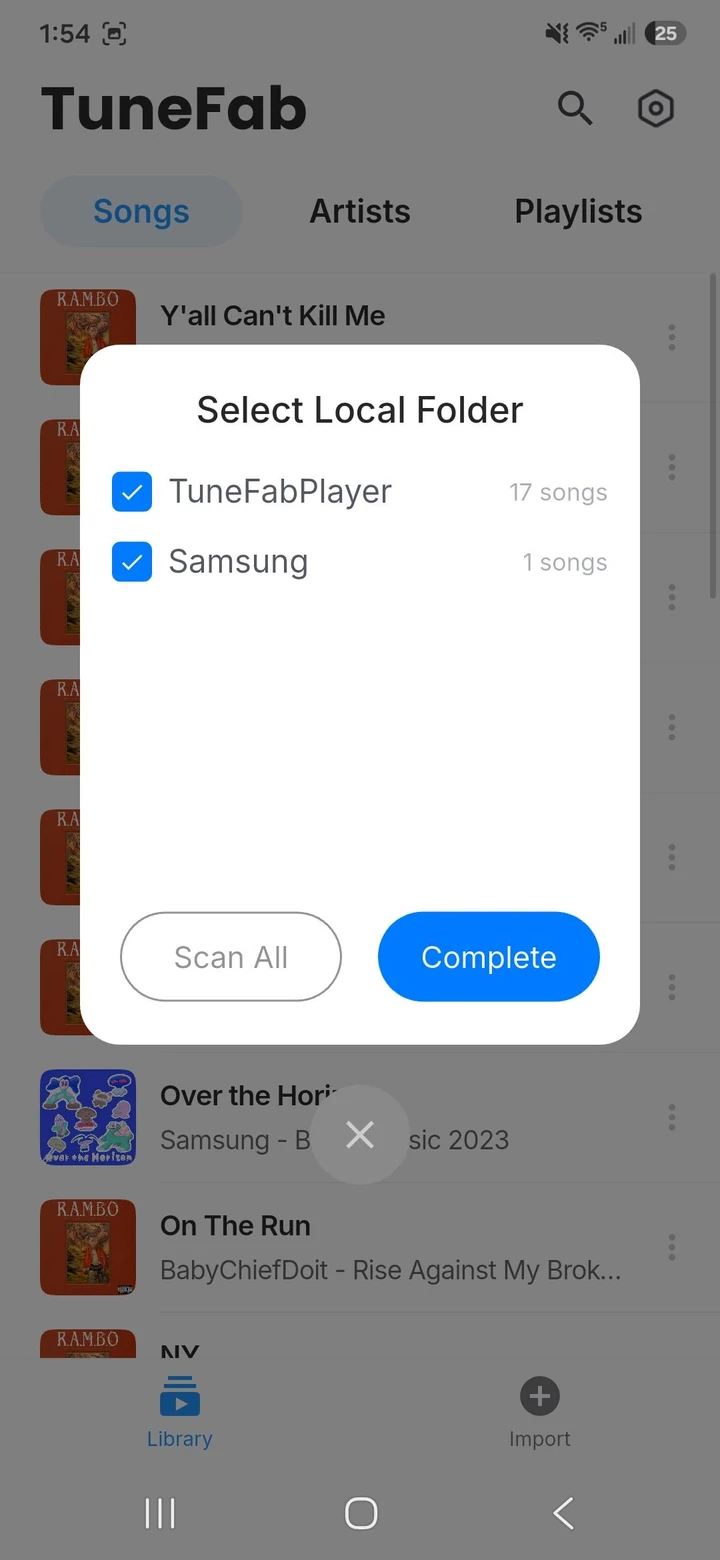
- Tap Import → Import from Files.
- In Select Local Folder, choose the folder containing your saved MP3 files.
- If the folder or songs are missing, tap Scan All.
- Once the required folder is selected, tap Complete.
Open Library → Songs and play a newly added track. You can also organize the songs into playlists alongside your other local music.
For more detailed interface instructions, see the Android music import guide.
Can You Play the Converted MP3 Files Offline?
Yes. Once an MP3 is fully saved on your phone and added to Player, it can play as a local file. Briefly turn off Wi-Fi and mobile data, then play an imported song to confirm that it is ready for offline listening.
The converter still needs an internet connection to process new links and prepare more audio. Before a trip, convert the music you want, import the files and check playback. Our local music offline listening guide explains how to prepare your library.
FAQs About the Spotify to MP3 Converter for Android
Can the Converter Use Spotify’s Offline Files?
Files saved for offline playback inside Spotify are not ordinary MP3 files that you can import into Player. This converter starts with a Spotify share link and finds matching audio; it does not import Spotify’s offline cache.
Is the Spotify to MP3 Converter Free?
The online converter is currently free to use. Check the allowance and other limits shown on the converter page before starting, especially when working with playlists or albums.
Why Is a Converted MP3 Missing from Player?
First, confirm that the MP3 is fully saved on your phone. Then check Player’s audio permission and select the relevant folder through Import from Files. Use Scan All to scan again if needed.
If the issue happens while processing a link or saving a file, see the online converter troubleshooting guide.
Start Converting with TuneFab Player
Use TuneFab Player to open the Spotify to MP3 converter from your Android phone, then bring the resulting files into a library you can browse and organize.
Start with one song, complete the conversion and import, then try a supported playlist or album link. Convert and save only audio you own or have permission to use.