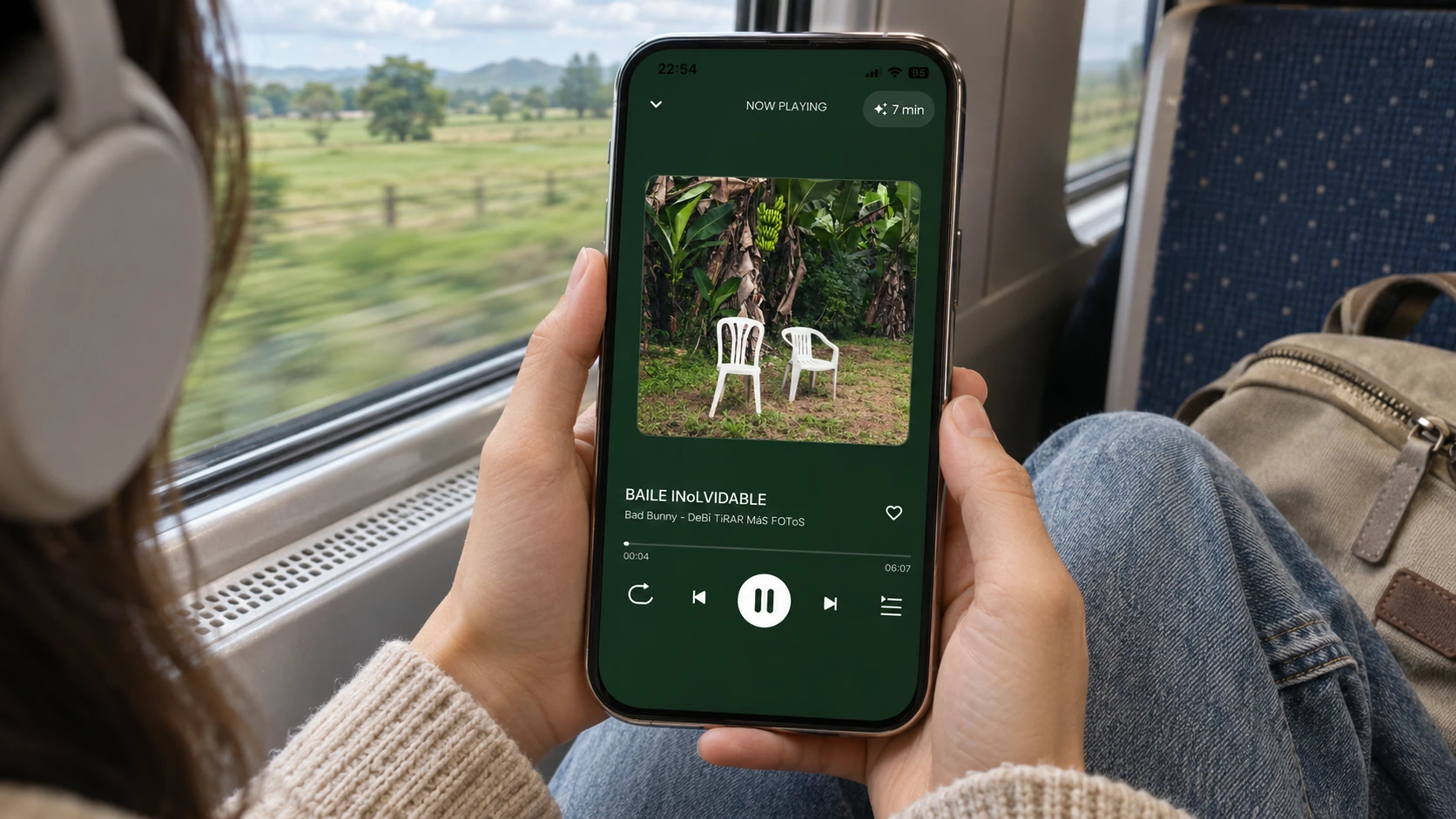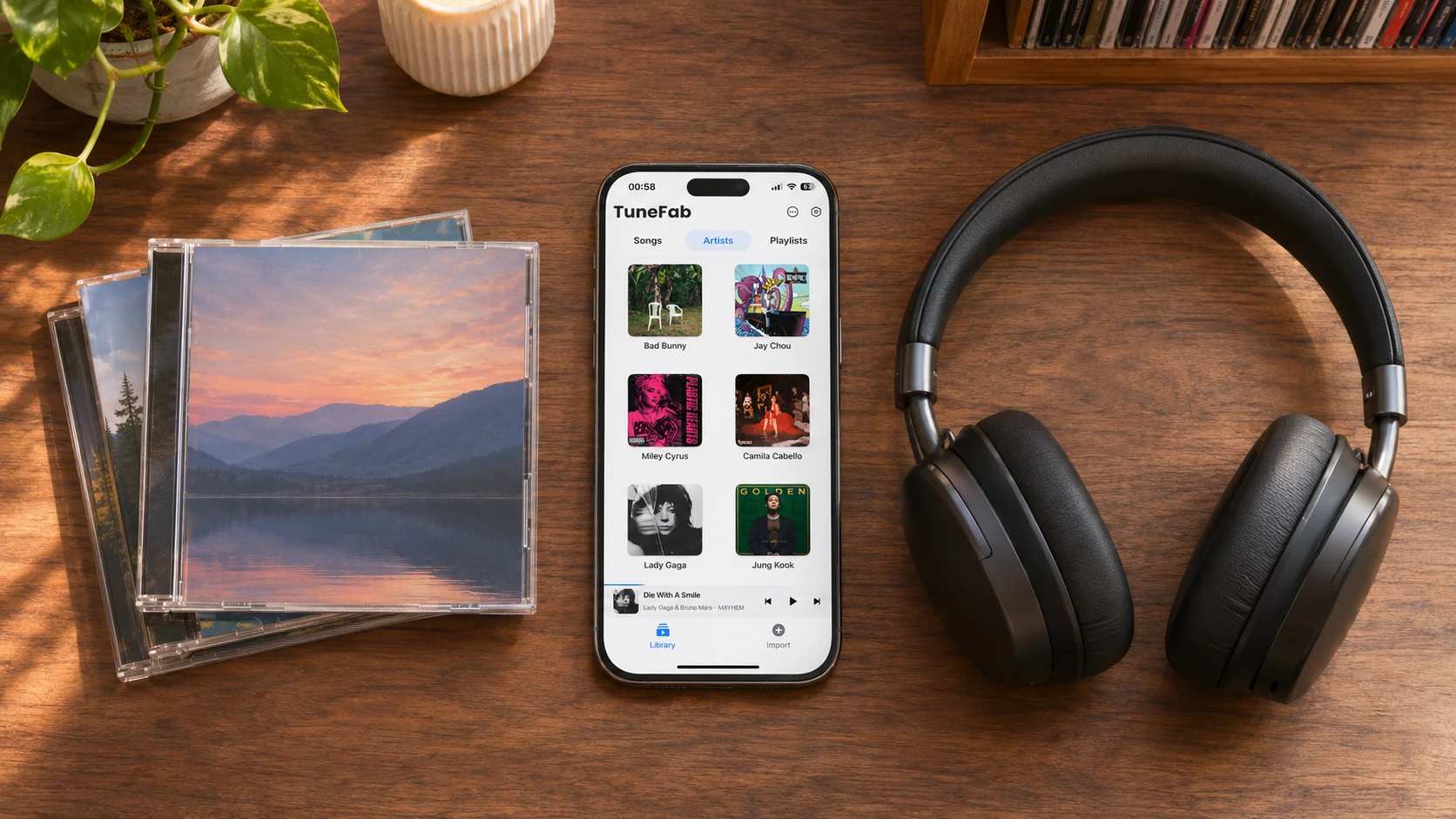
Want to convert Spotify album tracks to MP3 and listen on your Android phone? TuneFab Player lets you open an online converter from the app, save the prepared songs and add them to your own music library. You can then keep related tracks together and enjoy your saved music offline.
Before you start, choose the album version you actually want. A standard release, deluxe edition and live album may share a similar title but contain different recordings. This guide shows you how to check the album, use its link in the converter and organize the saved MP3 files in Player.


Why Use TuneFab Player as Your Spotify Album to MP3 Converter?
An album brings together songs from a particular release. When saving those songs as MP3 files, you need a way to work with the album link and a convenient place to listen afterward. TuneFab Player connects these steps through its online converter shortcut and local music library.
With TuneFab Player, you can:
- Start from an album link. Copy the Spotify album link and view its song results together in the converter.
- Complete the process on Android. Open the online tool from Player and use it in your phone’s browser.
- Save songs individually. Check the prepared tracks and save the MP3 files you want to keep.
- Organize your own collection. Import the files into Player and group related songs in a local playlist for offline listening.
The converter uses the Spotify link to identify the music and find matching audio. After saving the resulting MP3 files, import them into Player to organize and play them.
How to Convert Spotify Album Tracks to MP3 on Android
Install TuneFab Player on your Android phone, keep it connected to the internet and make sure there is enough storage for the MP3 files. Then follow these four steps.
Step 1. Choose the Album Version and Copy Its Link
Open Spotify and go to the artist’s album page. Before copying the link, check these details:
- Artist and album title: confirm that you opened the intended release rather than a playlist with a similar name.
- Edition: look for wording such as Deluxe, Live or Remastered, and choose the version you want to hear.
- Track list: check the song titles and release information, especially if you are looking for a bonus track or a particular recording.
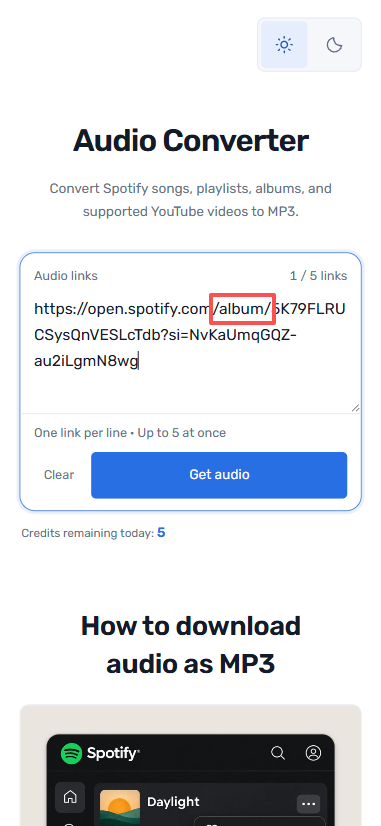
Open the album menu and select Share → Copy link. Copy the album’s link rather than the link to one song inside it. An album share link includes /album/ in its address.
Step 2. Open the Album Converter from TuneFab Player
Launch TuneFab Player and tap Import. Under Try something new, choose Online Converter. The tool opens in your phone’s browser.
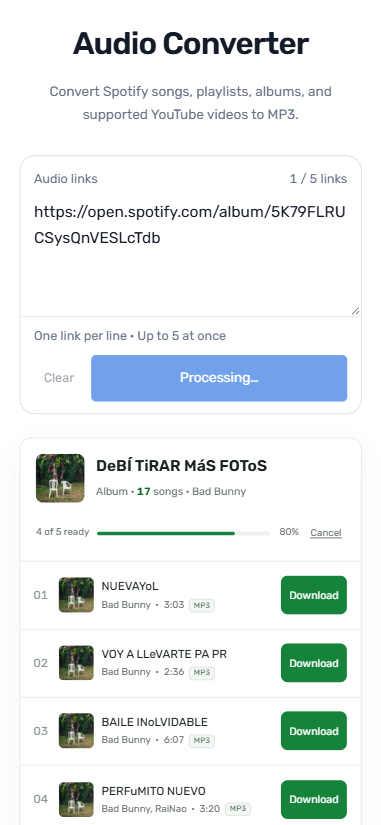
Paste the Spotify album link into the input box and select Get audio. The converter identifies the album and starts preparing the audio results. Check the album title, artist and cover shown on the page before continuing.
Step 3. Check the Album Tracks and Save the MP3 Files
Use the album’s track list in Spotify as a reference while reviewing the converter results. Check the song title, artist and duration so that you save the recordings you want. This is particularly useful when a song has a studio version, a live performance or several remasters.
Ready tracks display an MP3 label and an enabled save button. Tap the button beside a song and wait until the file is fully saved, then repeat for the other prepared songs you want to keep.
Find the MP3 files through your browser’s file list or your phone’s file manager. To keep the release easy to identify, you can place the saved files in a folder named after the artist and album before importing them into Player.
Step 4. Import the Songs and Keep the Album Tracks Together
Return to TuneFab Player and check your music library. If the saved songs do not appear:
- Tap Import → Import from Files.
- In Select Local Folder, choose the folder containing the MP3 files.
- If the folder or songs are missing, tap Scan All.
- Select the required folder and tap Complete.
Open Library → Songs and play an imported track. You can then open Playlists, create a local playlist named after the album and add its imported songs. Check the list against the release you selected so that you can recognize which recordings are in your local collection.
For more detailed instructions, see the Android music import guide. Before a trip, briefly turn off Wi-Fi and mobile data and play an imported song to confirm that it is ready for offline listening.
FAQs About the Spotify Album to MP3 Converter
Q1. Is TuneFab Player’s album converter free?
Yes. The online converter is currently free to use. Open it from TuneFab Player, paste a Spotify album link and save the prepared MP3 tracks to your phone.
Q2. How can I find the saved album tracks on my phone?
Open your browser’s file list or use your phone’s file manager to search for .mp3 files. If you are unsure which files belong to the recent conversion, check their names and saved dates. If you moved the songs into another folder, select their current folder when importing them into Player.
Bring Your Favorite Album Tracks into TuneFab Player
With TuneFab Player, you can start from a Spotify album link, save MP3 tracks on Android and bring them into a music library you can browse and organize. Choose the right album edition, check the song results and keep your imported tracks together for offline listening.
Get TuneFab Player and follow the steps above to start your own local collection. Convert and save only audio you own or have permission to use.